Category: Development

Watch for Venue Availability

In MIDAS v4.28, we’ve introduced a new “Notification Center“. In earlier versions of MIDAS, this functionality could be found within the “My Messages” screen.

As part of the new “Notification Center”, we’ve added a brand new type of “Watch” notification. “Watch” notifications allow you to be automatically notified whenever certain activity occurs within your MIDAS booking system.

For example, you may wish to be notified whenever a new booking is added to a particular venue, or when a particular type of booking is modified. You may also wish to be notified whenever certain “consumable” resources are running low.

From MIDAS v4.28 you can now create Watches for “Venue Availability”.

Receive notifications when a space becomes free and available in MIDAS
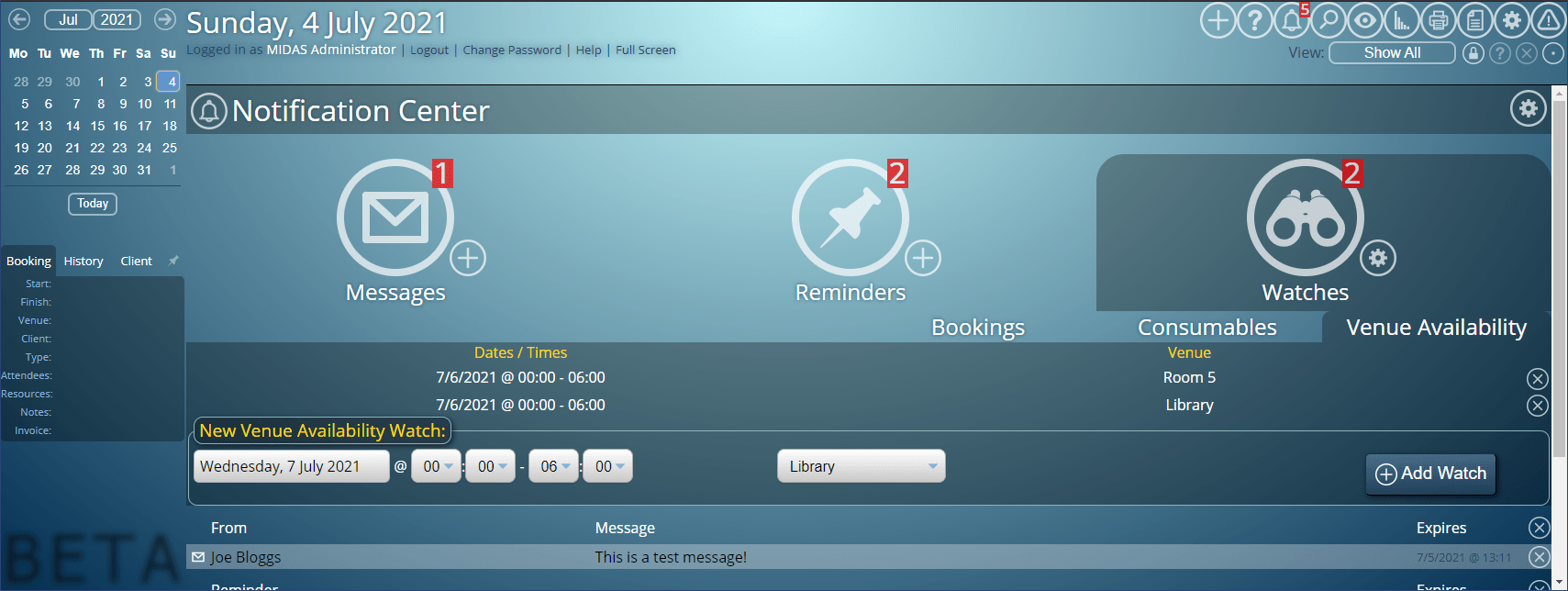
New Venue Availability Watch option in MIDAS v4.28

We know it can be frustrating when you go to book a room and find that it’s already been booked.

Well, wouldn’t it be great if MIDAS could automatically notify you should that timeslot become available again?

That’s exactly what Venue Availability watches allow you to do!

Simply select a currently occupied date, room, and time slot, add a new Watch, and MIDAS does the rest!

Should the unavailable time slot become available again (for instance, if the existing booking is moved or deleted), MIDAS will automatically notify you.


New Notification Center

For MIDAS v4.28 we’ve overhauled the “My Messages” screen, and renamed it to the “Notification Center”.

All the previous functionality of “My Messages” has been retained, but we’ve given the screen itself a bit of a “facelift” to de-clutter and simplify things.

We’ve even introduced a new “Watch” option… but more on that later.

For users with the “Can use Notification Center” permission, their Notification Center may be accessed via the new “bell” icon in the MIDAS toolbar.

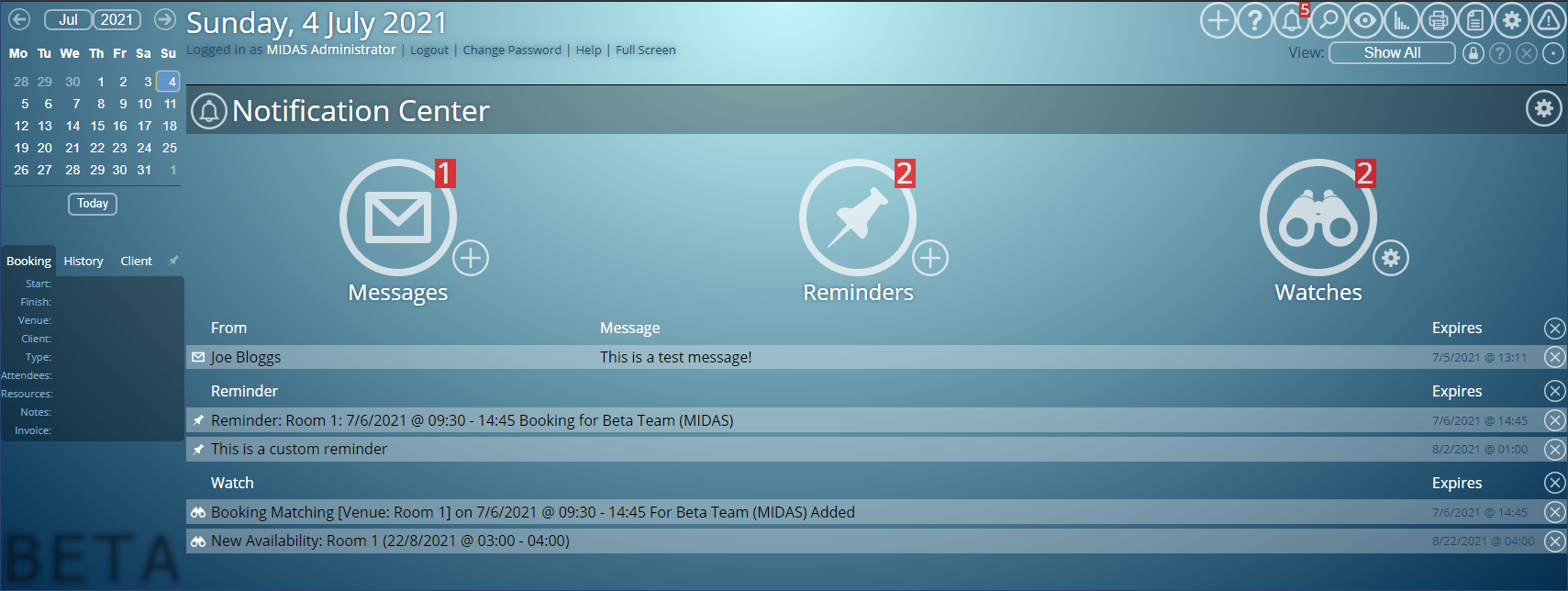
Here’s how the new Notification Center itself looks:

The new "Notification Center" (formally "My Messages") in MIDAS
The new “Notification Center” (formally “My Messages”) in MIDAS

The Notification Center comprises three components:

  • Messages
  • Reminders
  • Watches

The numbers in the upper right corner of these component’s icons denoted the number of notifications currently in each section. Clicking the corresponding icon toggles the display of notifications for that particular section.

In the lower right corner of each icon, there’s a smaller icon that allows you to add/configure each section.

Messages

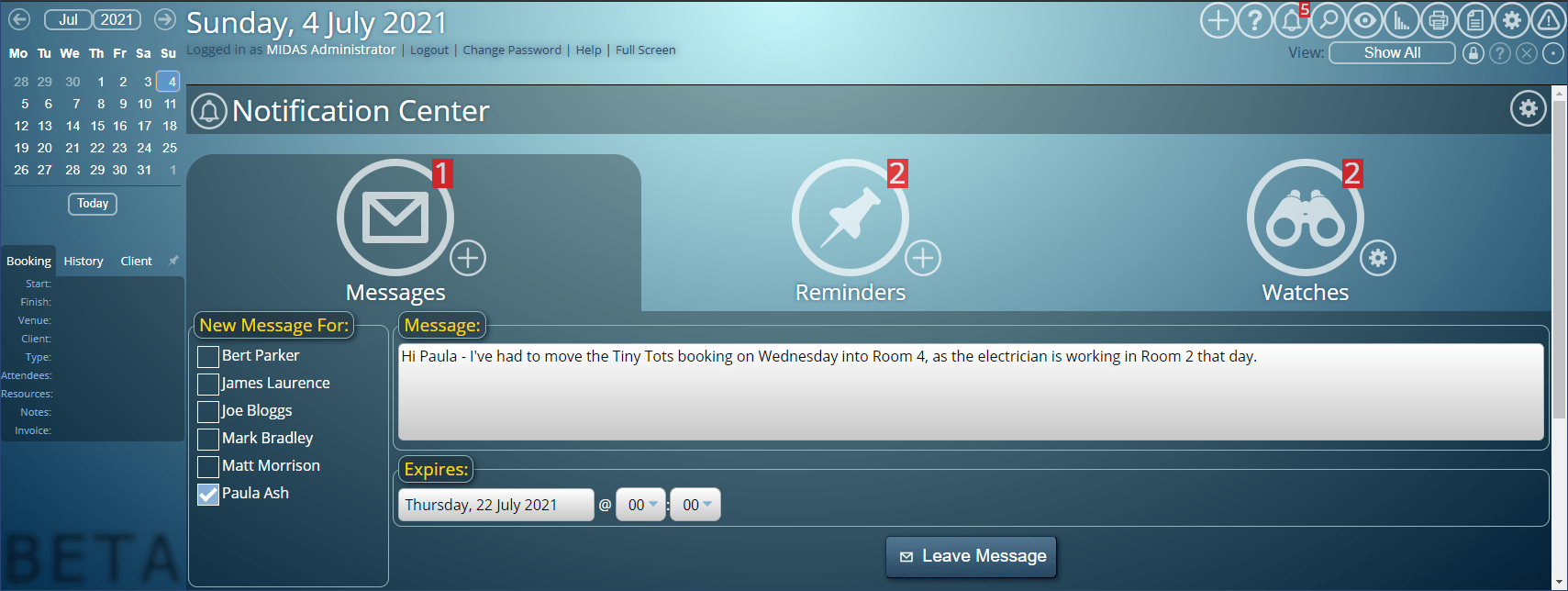
The “Messages” section displays internal messages you’ve received from other users in your MIDAS system. The “+” icon allows you to leave a message for another user:

Leave a message for another MIDAS user
Leave a message for another user

For more information on messaging another user, please see the Help Documentation.

Reminders

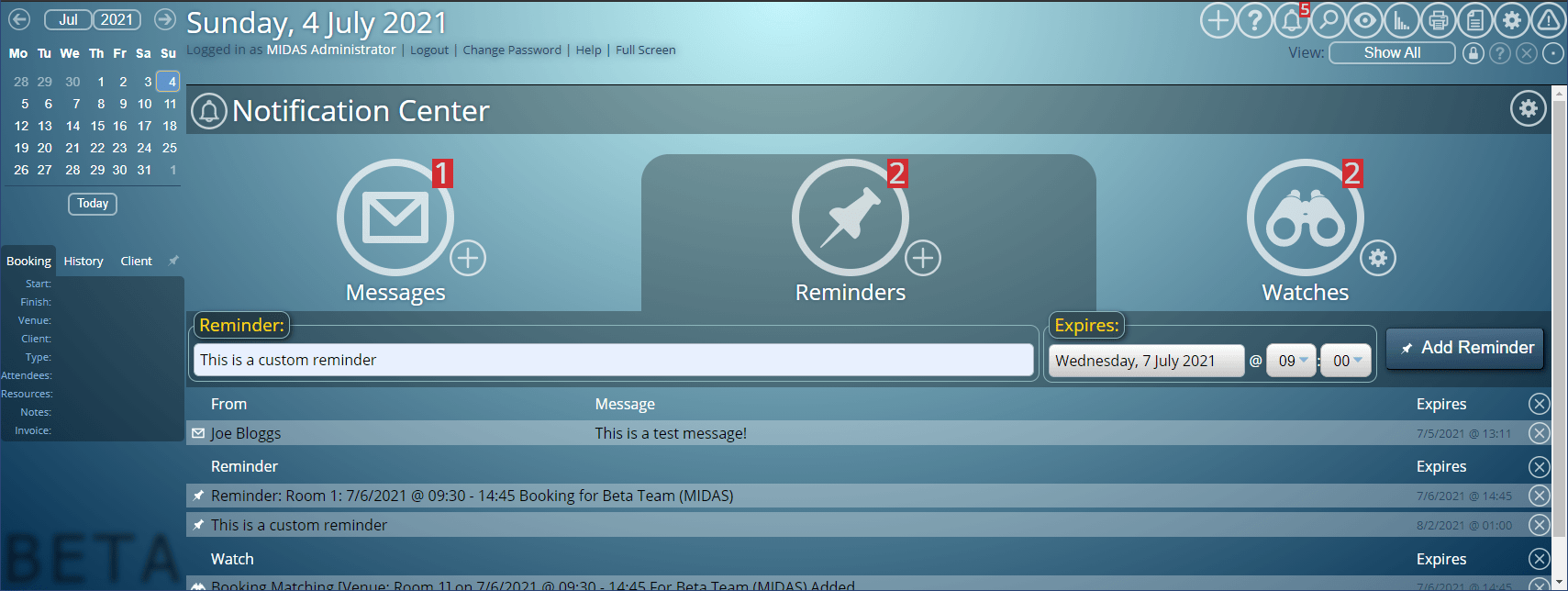
The “Reminders” section displays both booking and custom reminders you’ve set. To set a new booking reminder, simply select a booking in the Booking Grid, and then “Add Reminder”. To set a custom reminder, click the “+” icon near the bottom right of the “Reminders” icon in your Notification Center:

Set yourself custom reminders in MIDAS
Set yourself a custom reminder

For more information on Reminders, please see the Help Documentation.

Watches

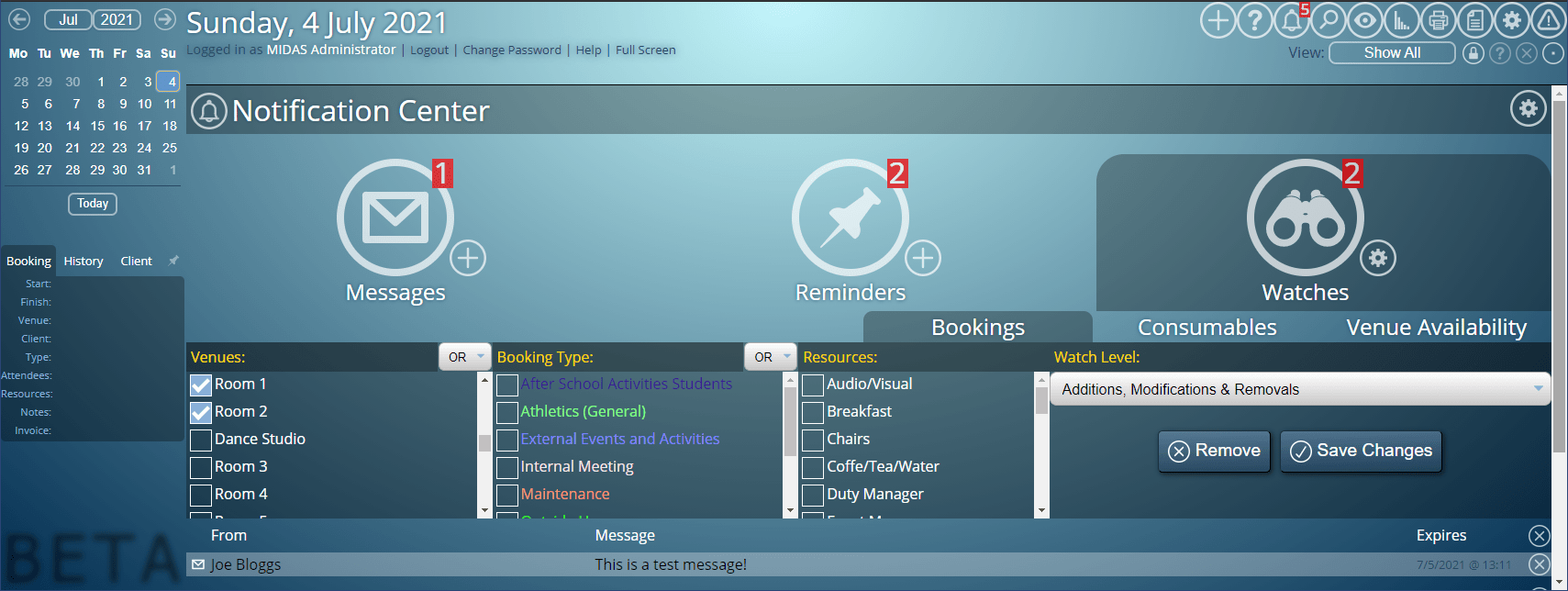
The “Watches” section displays watch notifications. These are generated when certain activity that you specify occurs within your MIDAS system. The “cog” icon adjacent to the “Watches” icon is used to configure your Watch notifications.

Configure Watch notifications in a MIDAS booking system
Configure “Watch” notifications

There are three types of Watch notification available:

  • Bookings
  • Consumables
  • Venue Availability

Bookings” allows you to monitor and be alerted to new activity in certain venues, and/or for certain booking types, and/or for certain resources.

Consumables” allows you to monitor levels of your consumable resources.

Venue Availability” allows you to be alerted if and when a currently unavailable time slot for a given venue becomes available again. This is a brand new feature introduced for v4.28, which you can read more about in this post.

For more information on Watch notifications, please see the Help Documentation.

Notification Center Settings

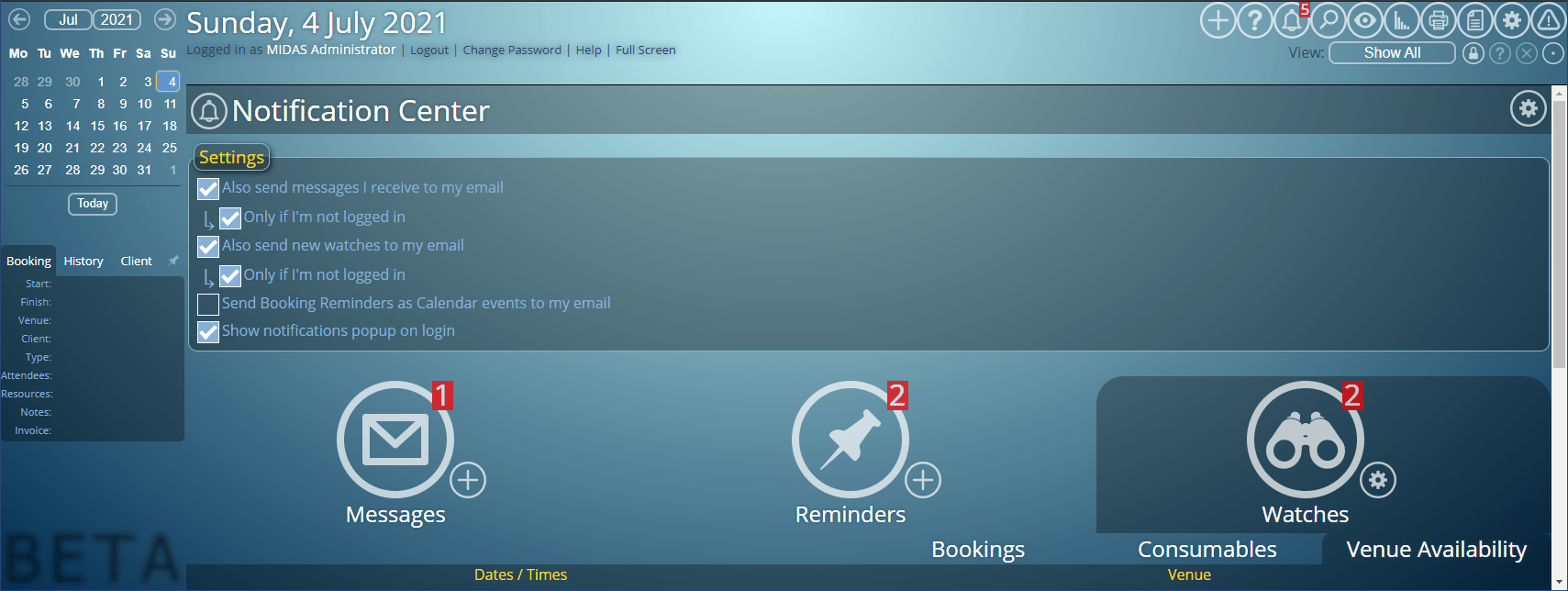
You can adjust your Notification Center settings from within the Notification Center via the “cog” icon in the upper right corner.

MIDAS software notification center
Notification Center Settings

These settings allow you to control how and when you receive notifications from your Notification Center.


Other new features in v4.27

In previous blog posts we’ve covered a number of new features coming in MIDAS v4.27. These include quickly selecting common date ranges, printing individual bookings, and auto-approve improvements for booking requests.

In this post we’ll brief touch on some of the other new features we’re introducing in v4.27.

Search results can now be easily printed

The “Print” icon in the MIDAS toolbar is really flexible! When viewing the Booking Grid, clicking the Print icon allows you to print bookings for the currently viewed date (or date range).

Furthermore, right-clicking the Print icon show advance print options allowing you to further customize booking print outs.

But that’s not all, the Print icon also allows printing in other areas of MIDAS. For example, when viewing reports/statistics, the Print icon will print the current report.

For v4.27 we’ve further extended the Print icon’s functionality in relation to search results.

When performing a search (via the “Search” toolbar icon), the Print icon can now be used to send the search results to your printer.

The Recent Activity audit log can now be exported to Excel

The “Recent Activity” feature in MIDAS allows administrators to view an audit log of all recent user activity within your booking system. This includes log ins and outs as well as bookings added, modified, and deleted.

Each entry in the Recent Activity log is timestamped with the user who performed each action, as well as their IP address.

This allows a full audit trail to be maintained for actions taking place in your MIDAS system.

For v4.27, we’ve added an “Export” button to the Recent Activity log. This allows you to easily export the log to Excel.

Exported client data now includes current credit and tax exempt status

Whilst we’re on the subject of exporting data from your MIDAS system; Exporting client data (MIDAS Admin Options → Export → Clients) in v4.27+ will now also include each client’s current credit and tax exempt status.

Note: This information will only be included in exported client data if the user performing the export has been granted the “Can use invoicing” permission.

Improved booking import support

As you may be aware, MIDAS allows you to import bookings from 3rd party software.

When importing bookings, MIDAS needs to know the date format used in the data you’re importing.

Every 3rd party application stores/exports dates differently, and so we strive to support as many different date formats as possible.

Currently supported import date formats are:

  • DD.MM.YYYY (Example: 23/07/2021)
  • DD.MM.YY (Example: 23/07/21)
  • MM.DD.YYYY (Example: 07/23/2021)
  • MM.DD.YY (Example: 07/23/21)
  • YYYY.MM.DD (Example: 2021/07/23)
  • YYYY.DD.MM (Example: 2021/23/07)
  • YY.MM.DD (Example: 21/23/07)
  • YY.DD.MM (Example: 21/07/23)
  • DD.MM.YYYY HH.MI (Example: 23/07/2021 16:30)
  • MM.DD.YYYY HH.MI (Example: 07/23/2021 16:30)
  • HH.MI.SS – Day DD Month YYYY (Example: 16:30:00 – Friday 23 July 2021)
  • HH.MI-HH:MI, Day DD Month YYYY (Example: 16:30-17:30, Friday 23 July 2021)
  • Day DD Month YYYY HH.MI – Day DD Month YYYY HH.MI (Example: Friday 23 July 2021 16:30 – Friday 23 July 2021 17:30)

For MIDAS v4.27, we’re adding support for a couple more date formats:

  • DD.Mon.YYYY (Example: 23-Jul-2021)
  • DD.Mon.YY (Example: 23-Jul-21)

This extensive range of supported date formats for your raw booking data should cover the formats used by most 3rd party applications.

If you have booking data that you wish to import that doesn’t conform to one of the above date formats, please let us know and we’ll try and add support in a future update.

Advanced filter improvements

When advanced printing or when generating invoices, MIDAS offers an advanced “filter” option. This allows you to include/exclude bookings from your printout/generated invoice(s).

For v4.27 we’ve imported these advanced filters to now allow blank (empty) search terms.

This improvement now allows you to include/exclude bookings where a certain booking field is blank, which previously you couldn’t do.

We’ve also further improved the advanced print filter to allow filtering of bookings by invoice.

This allows you to now generate a printout of bookings which match, partially match, or don’t match a particular invoice number.

Custom logo improvements for cloud hosted customers

MIDAS allows you to “co brand” the software by uploading your own logo. This logo then appears throughout the software. For example, it is included on the login screen for your MIDAS system. It can also then be included in various templates in MIDAS – including email and invoicing templates.

Your logo may be added/changed via MIDAS Admin Options → Manage MIDAS → Appearance → Logo.

Our cloud hosted customers may notice that when changing their logo, the changes are not immediately visible. This is due to the way our network “caches” static content, like logos. Sometimes it can take up to 24 hours to a logo change to be visible.

We’re improving this for MIDAS v4.27. Now, when our cloud hosted customers change their logo, their new logo should be visible right away!

How To Get MIDAS v4.27…

“Self Hosted” Customers:

Self-Hosted customers with active Support Subscriptions will shortly be able to update to v4.27. It only takes a couple of clicks – simply log in to your MIDAS system and go to MIDAS Admin Options → Manage MIDAS → Update.

If no update is available, please check back again in a few days time, as we are staggering updates for self-hosted customers over the next few weeks.

“Cloud Hosted” Customers:

Cloud-Hosted customers don’t need to do anything! – All our active Cloud-Hosted MIDAS customers will shortly be automatically updated to this latest version of MIDAS.
Conditional Auto-Approval For Booking Requests

The Public Booking Request feature of MIDAS allows non-users to check the availability of your rooms, and submit booking “requests” online. No user account or login is required in order to make a public booking requests.

When a booking request is made, “managers” for the requested venue are notified by MIDAS. They can then log in and quickly approve, reject, or modify the pending request.

The ability to have different managers for different rooms allows incoming requests to be filtered to the right department/person within your organization.

Public Booking Requesting is one of the most popular features of our software. It is a well feature widely used by our customers in their booking operations.

Auto Approval of Booking Requests

Back in October 2013 – with the release on MIDAS v4.04, we introduced the option to have all booking requests “auto approved”. With this option enabled, MIDAS would automatically approve all incoming booking requests with no manager intervention required.

Many customers don’t need this functionality, and instead prefer to manually review and approve each incoming booking request.

But for organizations such as large universities which allow students to book their own study rooms, the ability to have booking requests auto-approved is a real time saver.

Selective Auto-Approval

To extend this auto approve functionality though, we’re introducing a new option for MIDAS v4.27:

Automatically approve booking requests that originate from certain email domains or addresses
Auto-Approve Booking Requests from certain domains/addresses

Now, if the “Auto-Approve Booking Requests” option is enabled, there are two choices;

  • All
  • For these email addresses / domains

The “All” option retains the previous auto-approve behavior. If selected, then all incoming booking requests will automatically be approved by MIDAS (subject to availability).

The “For these email addresses / domains” option allows you to instruct MIDAS to auto-approve requests from certain email addresses or domains. This setting will take a comma separated list of email domains or individual email addresses.

If a person makes a booking requests under an email address which matches this setting, their request will be auto-approved by MIDAS.

If a booking request is made from under an email address which doesn’t match this setting, then venue managers will be notified and would need to manually review the request.

This powerful new auto-approve option can have some real benefits!

For instance, you could set anyone “internal” to your organization to have their booking requests auto-approved, whilst still requiring external requestors to have their requests manually approved.

How To Get MIDAS v4.27…

MIDAS v4.27 isn’t yet publicly available. It is expected to be made available to Beta Testers soon, with a full public release shortly after. In the meantime, why not check out some of the new features that were included in v4.26 ?