
Posts Tagged: web requests

Showing availability and taking bookings from your own website

One question we’re often asked is some variation of “how can people see our availability, or book with us, directly from our own website?” It’s a great question, and MIDAS gives you a few different ways to do exactly that. In this post we’ll walk through the options and help you pick the right one.

There are three features to know about. Two of them, Public Booking Requests and Public Web Bookings, are included as standard in every MIDAS system. The third, Web Calendars, is an optional add-on. They solve different problems, and they also work nicely together.

At a glance

FeatureWhat it doesIncluded or add-on?Best for
Web CalendarsEmbeds a calendar of your bookings into your own website, so visitors can see what’s on.Optional add-onDisplaying your schedule or availability on your site.
Public Booking RequestsLets visitors check availability and submit a booking request, which you approve before it becomes confirmed.Included as standardTaking enquiries you want to review before confirming.
Public Web BookingsLets visitors make and pay for a confirmed booking directly, with no approval step.Included as standardInstant, self-service bookings with online payment.

If you just want people to see what’s on

Sometimes you don’t need visitors to book anything online at all. You simply want to show them what’s already happening, or whether a particular space is free, right there on your own website. That’s what the Web Calendars add-on is for.

Web Calendars generates a tidy daily or monthly calendar of your bookings that you can embed directly into a page on your website using an IFRAME, or simply link to. You control exactly which venues and booking types appear, and how much detail is shown. With a little custom styling, you can even reduce a calendar down to a simple “available or booked” display for a particular room.

Web Calendars is our most popular add-on, but it is an optional paid extra rather than a standard feature. You can add it to your system at any time via mid.as/upgrade, or include it from the outset when you first purchase.

If you want people to request a booking

If you’d like visitors to be able to ask to book a space, but you want the final say before anything is confirmed, use Public Booking Requests. This feature lets non-users check your availability and submit a booking request, which lands in your system awaiting approval. A request only becomes a confirmed booking once a venue manager approves it.

This is ideal when you need to vet bookings, for example to check details, confirm payment separately, or simply make sure the request is appropriate before it goes in the diary. You can also restrict requests to particular email domains, and even set certain request types to be approved automatically.

If you want people to book and pay instantly

If you’d rather let visitors book a space there and then, with no approval step, use Public Web Bookings. This works much like Public Booking Requests, but instead of creating a request, it creates a confirmed booking straight away, including an online payment step so the visitor pays at the point of booking.

To accept payments for Public Web Bookings, you’ll first need to enable Stripe or PayPal in your system.

Both Public Booking Requests and Public Web Bookings are disabled by default, and need to be switched on by an administrator via MIDAS Admin Options → Public before they can be used.

The best of both: display and book together

Here’s where it all comes together. Web Calendars isn’t only for display. You can configure a calendar so that when a visitor clicks a date, they’re taken straight to your Public Booking Request or Public Web Booking screen, with that date already selected for them.

That means you can show an attractive calendar of what’s on directly on your own website, and let visitors click through to request or book an available slot in a couple of taps. It’s a great way to combine a polished public-facing display with the booking features already built into your MIDAS system.

Which should you choose?

  • Want to show your schedule or availability on your website? Use Web Calendars.
  • Want visitors to request a booking that you approve? Use Public Booking Requests.
  • Want visitors to book and pay instantly? Use Public Web Bookings.
  • Want to display and let them book in one journey? Use Web Calendars linked to either of the public booking features.

Whichever route suits you, you can find full setup details in our help documentation for Public Booking Requests, Public Web Bookings, and the Web Calendars add-on. If you’re not sure which is the best fit for your organization, just get in touch and we’ll be happy to point you in the right direction.
Selectively process multiple booking requests

One of the helpful features of MIDAS is the ability to allow visitors to your website to check availability of your facilities and submit booking “requests” online. They can do this without logging in or requiring an account.

Once a booking request is submitted, the manager(s) of the request facility are notified. A manager can then then quickly approve or reject the booking request in MIDAS with just a few clicks.

In MIDAS v4.14 in December 2016 we introduced the option to allow a manager to “bulk” approve or reject all outstanding requests with just a single click.

Bulk processing of all booking requests was first introduced in MIDAS v4.14

This saved time in instances where there were numerous booking requests which all required approval or rejection.

To be able to bulk approve a number of booking requests, a setting was made available. This instructed MIDAS as to the order in which it should approve requests when approving them in bulk.

The “Bulk Approval Order” setting has the following options:

  • Earliest Requested First – Booking requests will be approved in the order in which they were received. The earliest request received will be approved first.
  • Latest Requested First – Booking requests will be approved in the reverse order in which they were received. The most recently received request will be approved first.
  • Earliest Commencing First – Booking requests will be approved in the order in which the requested booking would start. Requests for the soonest start times will be approved first.
  • Latest Commencing First – Booking requests will be approved in the reverse order in which the requested booking would start. Requests for the furthest away start times will be approved first.

For MIDAS v4.37 we’re giving managers even greater control when it comes to processing multiple booking requests.

In addition to be able to approve or reject one booking request at a time, or “bulk” approve/reject ALL requests at the same time, you can now also selectively approve/reject multiple requests.

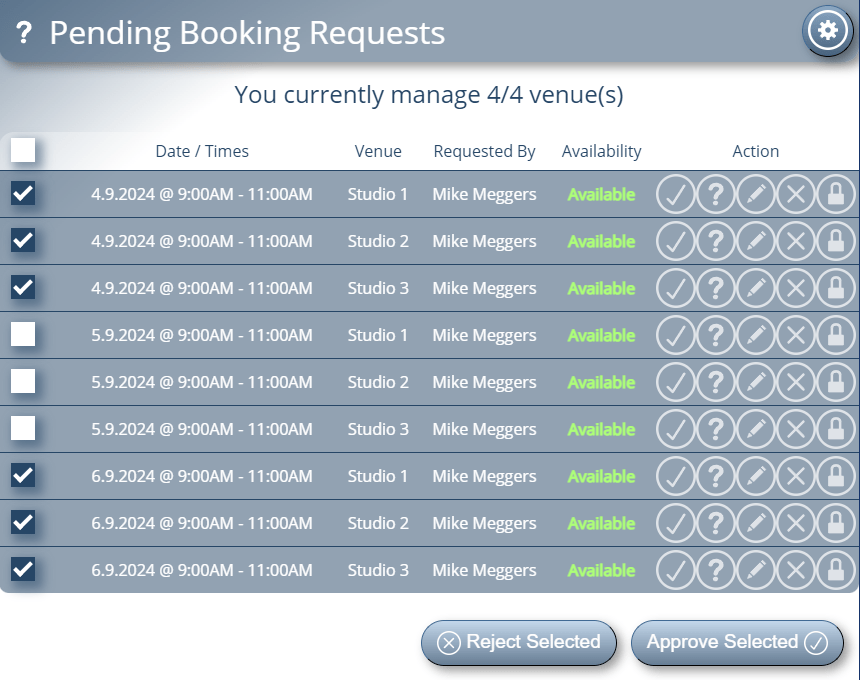
On the Pending Booking Requests screen there’s now a checkbox alongside each request that’s awaiting processing.

Selectively process multiple booking requests in MIDAS v4.37
Selectively process multiple booking requests in MIDAS v4.37+

A manager can use these tick boxes to select multiple requests and then click the “Approve Selected” or “Reject Selected” buttons at the bottom of the screen to process the selected requests accordingly.

If no requests are selected, the “Approve Selected” and “Reject Selected” buttons change. They then become the familiar “Approve All” and “Reject All” options which if used process all requests in the queue.


Conditional Auto-Approval For Booking Requests

The Public Booking Request feature of MIDAS allows non-users to check the availability of your rooms, and submit booking “requests” online. No user account or login is required in order to make a public booking requests.

When a booking request is made, “managers” for the requested venue are notified by MIDAS. They can then log in and quickly approve, reject, or modify the pending request.

The ability to have different managers for different rooms allows incoming requests to be filtered to the right department/person within your organization.

Public Booking Requesting is one of the most popular features of our software. It is a well feature widely used by our customers in their booking operations.

Auto Approval of Booking Requests

Back in October 2013 – with the release on MIDAS v4.04, we introduced the option to have all booking requests “auto approved”. With this option enabled, MIDAS would automatically approve all incoming booking requests with no manager intervention required.

Many customers don’t need this functionality, and instead prefer to manually review and approve each incoming booking request.

But for organizations such as large universities which allow students to book their own study rooms, the ability to have booking requests auto-approved is a real time saver.

Selective Auto-Approval

To extend this auto approve functionality though, we’re introducing a new option for MIDAS v4.27:

Automatically approve booking requests that originate from certain email domains or addresses
Auto-Approve Booking Requests from certain domains/addresses

Now, if the “Auto-Approve Booking Requests” option is enabled, there are two choices;

  • All
  • For these email addresses / domains

The “All” option retains the previous auto-approve behavior. If selected, then all incoming booking requests will automatically be approved by MIDAS (subject to availability).

The “For these email addresses / domains” option allows you to instruct MIDAS to auto-approve requests from certain email addresses or domains. This setting will take a comma separated list of email domains or individual email addresses.

If a person makes a booking requests under an email address which matches this setting, their request will be auto-approved by MIDAS.

If a booking request is made from under an email address which doesn’t match this setting, then venue managers will be notified and would need to manually review the request.

This powerful new auto-approve option can have some real benefits!

For instance, you could set anyone “internal” to your organization to have their booking requests auto-approved, whilst still requiring external requestors to have their requests manually approved.

How To Get MIDAS v4.27…

MIDAS v4.27 isn’t yet publicly available. It is expected to be made available to Beta Testers soon, with a full public release shortly after. In the meantime, why not check out some of the new features that were included in v4.26 ?


MIDAS v3.12 is here!

We are pleased to announce the release of MIDAS v3.12!

To coincide with this new version, we’re also excited to be releasing a new edition of MIDAS, “MIDAS Lite”!

What is MIDAS ‘lite’?

MIDAS Lite is a scaled down edition of MIDAS. It’s aimed at those who don’t require all the features of the full edition and those on tighter budgets.

There are lots of exciting new features in MIDAS v3.12 too! Notably, the ability to accept public booking requests for your rooms. There’s a host of other features too including customizable print, email, and invoice templates, booking confirmations, and selective restore from backups

Video Tutorials

We’ve also updated our Video Tutorials section with three new video tutorials. There’s now over an hour’s worth of step-by-step video guides now available!

New Features in v3.12

How to get MIDAS

If you’re an existing MIDAS user with a current Annual Support Package, you can upgrade to v3.12 right now! Simply login to your MIDAS, click the “MIDAS Admin Options” icon and select “Manage MIDAS -> Update”. If your Annual Support Package has recently expired, don’t worry – you can quickly renew it at https://mid.as/renew

If you’re new to MIDAS, you can check out fully-functional demos of both MIDAS and MIDAS Lite RIGHT HERE. To get MIDAS working for YOUR company/organization, head over to https://mid.as/pricing to get yourself a copy of the new MIDAS v3.12!

UPDATE: As from 1st August 2012, MIDAS Lite is no longer available, as our pricing has been restructured to make the full edition of MIDAS available starting from MIDAS Lite prices! You can read more here.