Posts Tagged: custom fields

Capture exactly what you need: getting creative with custom fields

Every organization runs its bookings a little differently. Out of the box, MIDAS captures the essentials with each booking – the date and time, the venue, who it’s for, the type of booking, the number of attendees, any resources, and a notes field. For your clients, it records names, organizations, contact details, and addresses.

But what if you need to capture something specific to your operation? Perhaps a a signed waiver, a purchase order number, or a link to a room layout. That’s exactly what custom fields are for. They let you add your own booking fields and client fields on top of the standard ones, so MIDAS records precisely the information you need.

In this post we’ll look at the types of custom field available, and share some real-world ideas for putting them to work.

The building blocks

You can add custom fields to either bookings or client records, and each field can be one of the following types:

  • Text – a single-line text field, ideal for short pieces of information such as a reference or order number.
  • Text Area – a multi-line field for longer notes. You can set how many rows it shows by default, and make it resizable so users can drag it larger when they need to.
  • Number – accepts numerical input only.
  • Checkbox – a simple tick box, perfect for yes/no questions.
  • List (Single Select) – a drop-down from which one predefined item can be chosen.
  • List (Multi Select) – a drop-down from which several items can be chosen at once.
  • Range – a slider control for picking a numeric value between a minimum and maximum you define.
  • URL – a clickable web link to an external resource.
  • File – lets users upload and attach files or documents directly to a booking or client record. (Available in self-hosted editions of MIDAS – see why file fields aren’t available on cloud-hosted systems.)

Each field can be shown or hidden, made optional or required, restricted to certain users, and given a short description that appears above it to guide whoever is filling it in.
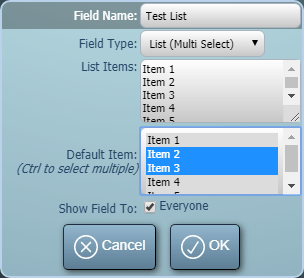
A List (Multi Select) custom field

Ideas for custom booking fields

A waiver or terms checkbox – with a link
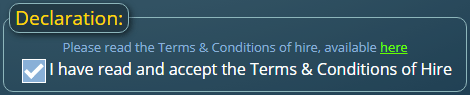
A custom checkbox field with an HTML enabled description.

A field’s description accepts simple HTML, which opens up some neat possibilities. Add a Checkbox field named something like “I have read and accept the Terms & Conditions of Hire”, and in its description include a link to your waiver or terms document. Mark the field as Required, and a booking can’t be saved until the box is ticked – giving you a simple record that the waiver was acknowledged for every booking.

A link to supporting documents

A URL field is a tidy way to associate an external document with a booking without storing the file itself – useful on any edition, including cloud-hosted. You might link to a shared document, a SharePoint page, a risk assessment, or an event running order held elsewhere. Whoever opens the booking can jump straight to the relevant document with a click.

A purchase order or cost code

A simple Text field captures a PO number or internal cost code against each booking, ready to appear on the resulting invoice. You can even apply input validation to a text field using a regular expression, so MIDAS only accepts entries that match the format your finance team expects.

An expected-numbers slider

While MIDAS already records attendees, a Range slider can be handy for capturing a softer estimate – for instance a “Confidence in numbers” or “Setup complexity” scale – giving your team a quick visual cue when they open the booking.

Ideas for custom client fields

A salutation or title
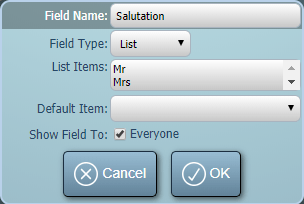
A custom client "Salutation" field
A custom client “Salutation” field

A List (Single Select) client field with items like Mr, Mrs, Ms, Dr, and Rev means your emails and letters can address clients correctly, drawing on the field automatically through your templates.

Insurance certificates and contracts
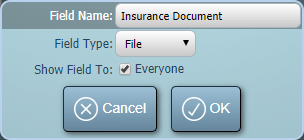
Upload and attach an insurance document to a client record
Upload and attach an insurance documents to client records

On self-hosted systems, a File client field lets you attach an insurance certificate, signed contract, or accreditation document straight to a client’s record – so it’s always to hand when you need it, rather than buried in someone’s inbox.

Membership or account numbers

A Text or Number client field is the natural home for a membership ID, account reference, or loyalty number, keeping it alongside the rest of the client’s details.

Putting your fields to work in templates

Custom fields aren’t just for the booking screen. Each one becomes available as a template variable, so you can include its value in booking confirmation emails, invoices, and print outs. Rename or remove a custom field, and MIDAS automatically updates the corresponding variable references in your templates for you.
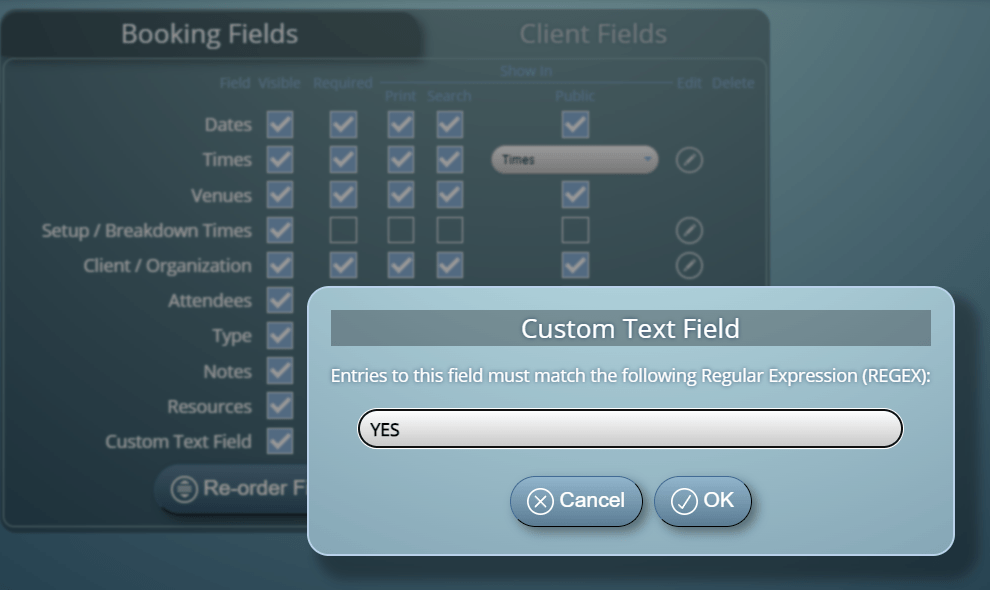
Custom field input validation with REGEX support

Getting started

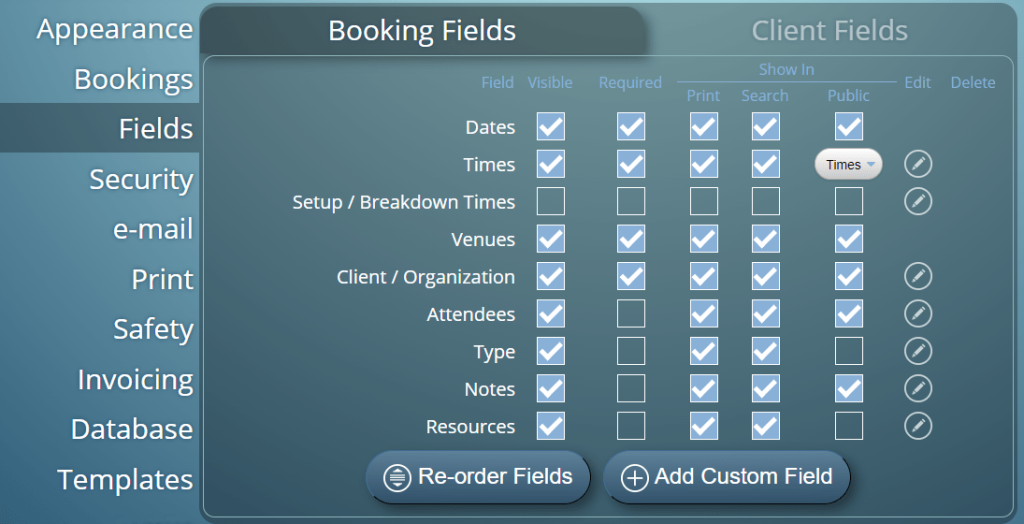
Custom fields are managed via MIDAS Admin Options → Fields, where you can switch between your booking fields and client fields and add as many of your own as you need. For the full details, see our Manage Fields help documentation.

However you run your bookings, custom fields let you shape MIDAS around your process rather than the other way around. If you come up with a clever use of your own, we’d love to hear about it!
Are Fax numbers still relevant in 2026?

In a previous article, we talked about the various default input fields included in MIDAS as standard. One of the standard input fields available is for a client’s “Facsimile” number (more commonly know as their Fax number).

We’ve included Fax as a “standard” client field since we first started MIDAS two decades ago. But our previous article got us thinking…. are fax machines still a thing in 2026?

We’ll admit, here at MIDAS HQ, we can’t remember the last time we received a fax. In fact, we can’t recall ever having sent one either!

What is a Fax Machine?

Now, it occurs to us that some reading this article may never have come across a fax machine! (Yes, we’re showing our age!)

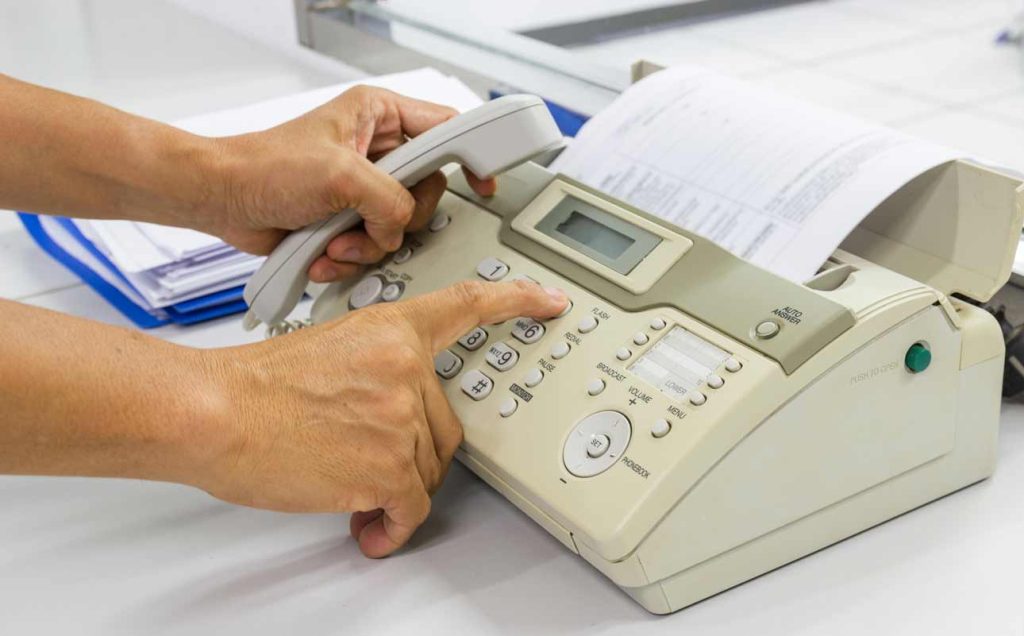
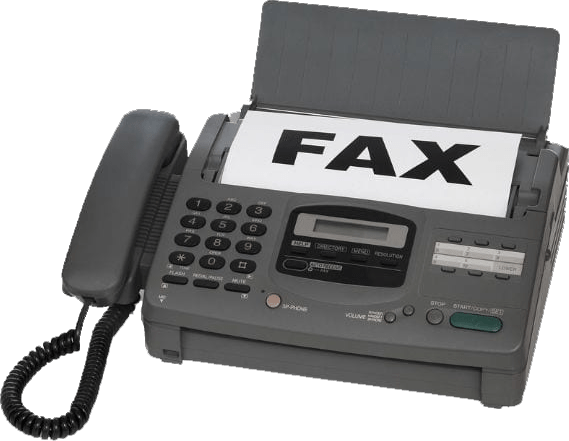
So, if you’re not familiar, a fax machine – short for “facsimile machine” – is a technology used for transmitting documents over a traditional telecommunication (phone) network. It allows the near-instantaneous reproduction of text and images (all be it at low resolution) at a distant location.

A Fax Machine
A Fax Machine

The History Of The Fax Machine

Early Conceptualization (19th Century):

The concept of transmitting images over long distances actually dates back to the 19th century. In 1843, Scottish inventor Alexander Bain received a patent for his idea of a “Copying Telegraph” that could transmit images using a series of synchronized pendulums.

Pantelegraph (1865):

In 1865, Italian inventor Giovanni Caselli developed the “Pantelegraph,” which was the first practical fax machine. It used a rotating stylus to scan and transmit handwritten messages and images over telegraph lines.

Facsimile Transmission (1920s):

During the 1920s, advancements in radio technology led to the development of early versions of fax machines that utilized radio waves for transmission. These machines were primarily used for newspaper photo transmission.

Telephotography (1930s):

In the 1930s, “telephotography” systems emerged, allowing photographs to be sent over telephone networks. However, these systems were expensive and not widely adopted.

Xerox LDX (1964):

The first commercialized fax machine was the Xerox LDX (Long Distance Xerography), introduced in 1964. It used the then-common electrostatic printing technology to transmit documents over long distances.

ITU Standardization (1980s):

In the 1980s, the International Telecommunication Union (ITU) developed standardized protocols for fax transmission, which facilitated interoperability between different fax machines and networks.

Thermal Transfer Fax Machines (1980s-1990s):

In the 1980s and 1990s, thermal transfer fax machines gained popularity due to their lower cost and improved printing quality.

Internet Faxing (1990s):

With the rise of the internet, fax technology evolved to include internet faxing or “fax over IP,” which enabled faxes to be sent and received through email and online fax services.

Decline and Legacy (2000s-2010s):

As digital technologies like email and document scanning became more prevalent, the use of traditional fax machines declined. However, fax technology continues to be used in some industries, especially in areas where secure document transmission is essential.

Modern Fax Services (Present Day):

Today, faxing has largely transitioned to digital platforms and online fax services. These services use internet protocols to send and receive faxes electronically, eliminating the need for physical fax machines and allowing for more efficient and secure document transmission.

Though the traditional standalone fax machine’s popularity has waned, the concept of faxing lives on in digital form, offering a reliable means of transmitting documents in various professional settings.

Do people still use fax machines?

The number of people using fax machines has declined due to the increasing adoption of digital communication methods like email, cloud-based document sharing, and secure messaging platforms. As a result, faxing has become less common in many regions, especially in developed countries.

While some specific industries and regions might still rely on fax machines for certain purposes, it’s safe to say that the number of people using traditional fax machines globally has significantly decreased. Online fax services and digital communication in general provides a more efficient and convenient way to send and receive documents these days. The traditional fax machine has become far less relevant.

You Got A Fax

Getting The Facts on Fax!

As MIDAS includes a field to enter a Fax number for each client record, we were keen to understand how – and indeed if – our customers use this field.

In August 2023, we took an anonymized random sample of 190 of our cloud hosted customer’s MIDAS systems. Between them, this sample of MIDAS systems contained a total of 213,887 individual client records. Here’s what we discovered…

90% of MIDAS systems have the “Fax” field enabled

We were quite surprised that this was figure so high! However, it should be noted that the Fax field is actually enabled by default in all fresh installations of MIDAS. Therefore, only 10% of customers have taken action and disabled this field.

Of the 90% of MIDAS systems where the “Fax” field is enabled, not a single system has been configured to mark this as a “Required” field.

Only 0.44% of clients have a fax number

We found that only 0.44% of client records within our anonymized sample of cloud-hosted MIDAS systems we host, contained an entry in the “fax” field. It’s also possible that some customers actually use the “Fax” field to record other client data – like an additional cell/mobile number. Therefore, it’s reasonable to assume that less than 0.44% of clients have an actual fax number.

Facing The Facts on Fax!

So what are our key takeaways from these facts? How can we use this information moving forward?

Despite 90% of MIDAS systems having the Fax field enabled in 2023, this field was utilized by less than half a percent of clients.

It’s fair to say that the “Fax” client field wasn’t really used! For all intents and purposes, it was obsolete.

Our first takeaway from this was that the “Fax” field probably shouldn’t be enabled by default. By initially “hiding” this field, it would simplify the editing of client records.

We took this one step further in MIDAS v4.35 by actually removing “Fax” as a standard MIDAS client field all together. Instead, if customers do wish to capture client fax numbers, they could easily create a custom client field for this purpose instead.

Customers using the previous standard “Fax” client field need not worry! We ensured that the software update process to v4.35 automatically migrated fax data over to a custom client field with the same name.


Custom Field Improvements in v4.37

MIDAS includes a number of useful booking and client fields out-of-the-box. You can use these to capture information about your clients and their bookings. In addition, the software also allows you to create custom fields to record additional information with each booking or client.

For MIDAS v4.37, we’re making improvements to a couple of the ‘custom’ fields you can add to your scheduling system.

Custom “Text Area” fields can have a height set and can be resizable

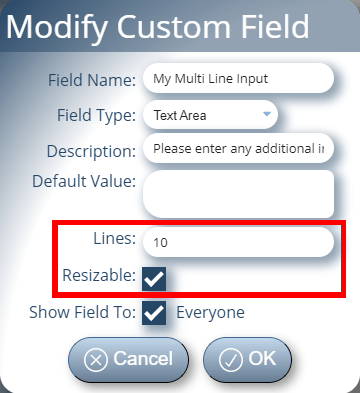
Set the number of visible lines and make textareas resizable

Sometimes a single-line input field may not be sufficient to capture the amount of information you desire. In such instances, MIDAS allows you to alternatively create a multi-line “Text Area” input field.

Until now, creating a custom Text Area field would display a text input field with a relatively small height. Whilst its contents would be scrollable, the field would typically only show 2-3 lines of text at a time.

Now when creating (or editing) a custom Text Area field, you’ll have more control! You’ll be able to specify the number of rows that should be displayed at any given time on the field.

So if you anticipate that your custom field is only going to hold a couple of lines of text, you can set the number of rows to display low. But, if you expect your custom field to capture dozens of lines of text, you can increase the number of rows shown.

Furthermore, you can also set a custom Text Area field to be “Resizable”. When a Text Area field is set as resizable, a user will be able to drag the bottom of the custom Text Area field down to allow the display of more lines of text at once.

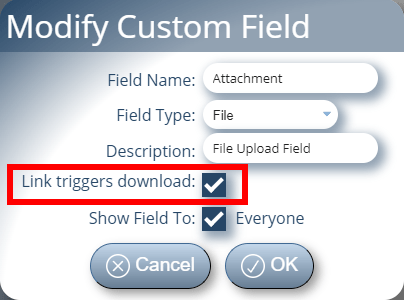
Custom file uploads can be set to either view or save/download the file when clicked

Choose whether file attachments should be downloaded or viewed inline

The custom “File Upload” field was first introduced in MIDAS v4.07. If utilized, this allows a document or file to be uploaded and attached to a booking or client record.

When we implemented this custom field type in 2014, we configured MIDAS to ‘hint’ to an end-users user’s browser that an uploaded and attached file should be ‘downloaded’ to the user’s device when clicked.

In those days, it wasn’t common place for web browsers to be able to open a variety of file types. There was even a time when browsers would struggle to open and correctly display PDF files.

These days, web browsers can open and display a wide range of document/file types.

For v4.37, we’ve provided administrators with the option to allow MIDAS to ‘hint’ to user’s browsers whether an custom file upload should be either ‘downloaded’ to the user’s device when clicked, or ‘opened/displayed’ in a new window/tab instead.

So if you’re attaching PDF files to bookings, for instance, you can now instruct browsers to display these files in your browser instead of prompting you to download them to your device.

Please note that MIDAS only provides ‘hints’ to user’s browsers as to whether to view or download an attached file. It’s down to individual browsers as to whether they respect these hints and how they process the attached files.


Custom Validation For Required Fields

MIDAS ships with a set of standard booking and client input fields. These input fields allow you to capture specific details about a client and their bookings.

Standard Input Fields In MIDAS

Now some of these fields will always be required. For bookings, a minimum of a date and a venue (room/bookable space) is required. All other booking fields can be set to be optional. Likewise, for clients, a minimum of the client’s name is required. All other client fields can be set to be optional.

Here’s a list of the standard fields which are included in MIDAS by default:

Default Booking FieldsDefault Client Fields
DateClient
Times (Booking)Organization
Times (Setup / Breakdown)E-mail Address
VenueMailing Address
Client / OrganizationTelephone Number
AttendeesFax Number (until MIDAS v4.35)
Booking TypeCell/Mobile Number
Booking NotesClient Notes
Resources

MIDAS also allows you to “turn off” fields that you don’t need. So if you don’t need to capture a client’s mailing address, you can disable that field.

But that’s not all – in addition to the standard “default” fields, you can create additional custom booking or client fields in MIDAS.

Adding Custom Fields

A range of different types of custom fields can be created, including:

  • Checkbox – A “tick box” field.
  • File – Allows uploading/attaching of files and documents to bookings or client records (self-hosted systems only)
  • List (Single Select) – A drop-down list of pre-defined items from which a single item may be selected.
  • List (Multi Select) – A drop-down list of pre-defined items from which multiple items may be selected.
  • Number – A field that will only accept numerical input.
  • Range – A “slider” control allowing selection of a numeric value within a defined range.
  • Text – A single-line text field.
  • Text Area – A multi-line text field.
  • URL – A navigable web link to an external resource.

As with standard fields, custom fields can also be set to be “required”. This means that an input is required in the custom field each time it’s shown.

New Validation Feature

For MIDAS v4.34, we’re extending the capabilities of marking custom number, text, text area, and URL fields “required”.

Let’s take the example of a custom single-line text field. Marking this as a required field would ensure that a user would enter something into the field. However, MIDAS wouldn’t check what they’d actually entered. Just entering a single character, or gibberish would be enough to allow you to proceed.

From v4.34 onwards, when setting a custom number, text, text area, and URL field as “required”, you can instruct MIDAS what values are considered “valid” for the field. A user would then need to enter a “valid” value in order to proceed.

Custom Field Validation Using Regular Expressions

A Simple Example

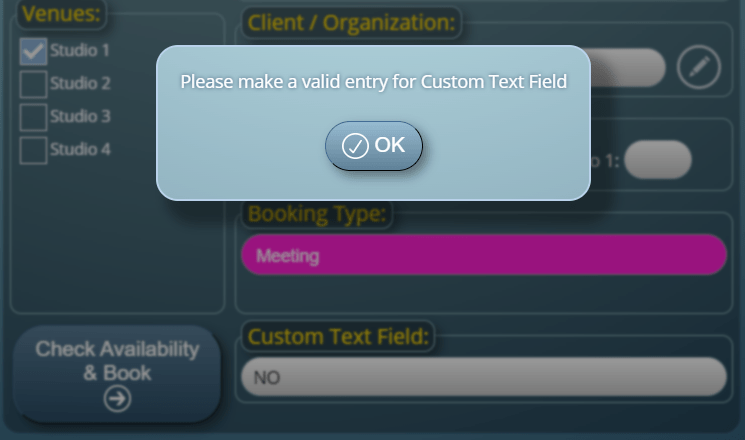
As an example, you could make it so that a user has to enter the word “YES” into a custom text field in order to proceed. If the custom field doesn’t contain the word “YES”, the user will be prompted to correct their entry:

Require Valid Entries In Custom Fields

The Power Of REGEX

Regular Expressions (REGEX) can be used to create more complex validations for your custom fields too. We’ll cover REGEX in more depth in a future article. In the meantime, as a brief introduction, here are a few simple yet useful REGEX’s for validating entries into your custom fields:

DescriptionREGEX
Value must start with the letters “BOOK”^BOOK
Value must end with the letters “ING”ING$
Value must contain “BOOKING”BOOKING
Value must be exactly “BOOKING”^BOOKING$
Value must contain a number (digit)\d
Value must not contain a number (digit)\D
Value must be exactly “BOOK”, followed by two single digit numbers^BOOK\d\d$

You’ll find further examples together with detailed explanations in our KB article: How to use Regular Expressions for custom input validation.

How To Use

Custom field validation can be setup via MIDAS Admin Options → Manage MIDAS → Fields.

On any custom number, text, text area, or URL fields, right-click (or long press on touch screens) on the field’s “Required” box.

You’ll then be able to set or modify the Regular Expression that should be used to validate entries to the field.