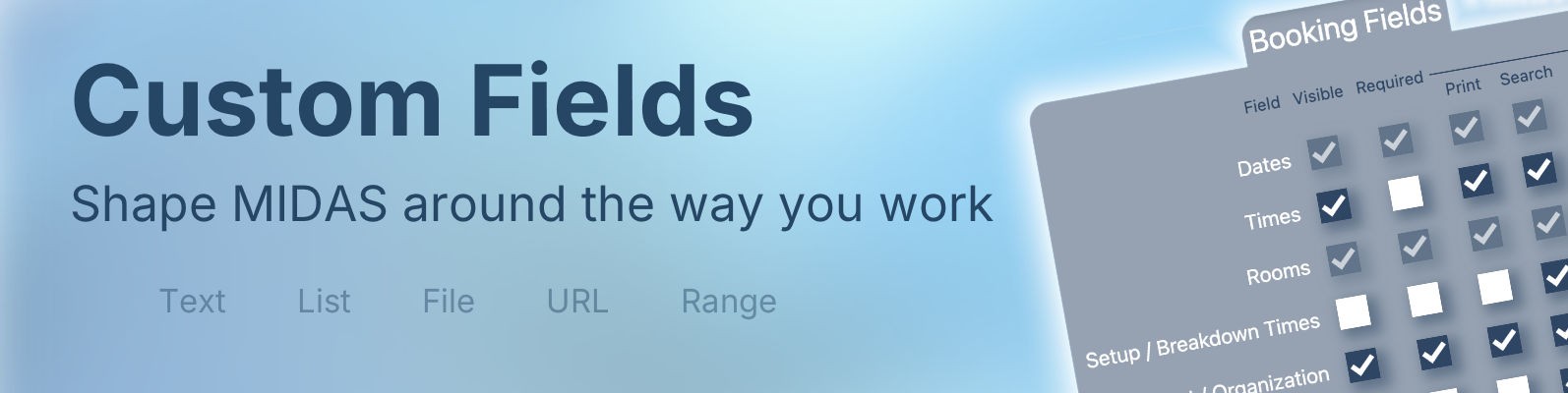
Every organization runs its bookings a little differently. Out of the box, MIDAS captures the essentials with each booking – the date and time, the venue, who it’s for, the type of booking, the number of attendees, any resources, and a notes field. For your clients, it records names, organizations, contact details, and addresses.
But what if you need to capture something specific to your operation? Perhaps a a signed waiver, a purchase order number, or a link to a room layout. That’s exactly what custom fields are for. They let you add your own booking fields and client fields on top of the standard ones, so MIDAS records precisely the information you need.
In this post we’ll look at the types of custom field available, and share some real-world ideas for putting them to work.
The building blocks
You can add custom fields to either bookings or client records, and each field can be one of the following types:
- Text – a single-line text field, ideal for short pieces of information such as a reference or order number.
- Text Area – a multi-line field for longer notes. You can set how many rows it shows by default, and make it resizable so users can drag it larger when they need to.
- Number – accepts numerical input only.
- Checkbox – a simple tick box, perfect for yes/no questions.
- List (Single Select) – a drop-down from which one predefined item can be chosen.
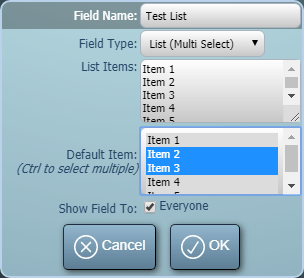
- List (Multi Select) – a drop-down from which several items can be chosen at once.
- Range – a slider control for picking a numeric value between a minimum and maximum you define.
- URL – a clickable web link to an external resource.
- File – lets users upload and attach files or documents directly to a booking or client record. (Available in self-hosted editions of MIDAS – see why file fields aren’t available on cloud-hosted systems.)
Each field can be shown or hidden, made optional or required, restricted to certain users, and given a short description that appears above it to guide whoever is filling it in.
Ideas for custom booking fields
A waiver or terms checkbox – with a link
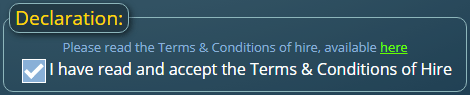
A field’s description accepts simple HTML, which opens up some neat possibilities. Add a Checkbox field named something like “I have read and accept the Terms & Conditions of Hire”, and in its description include a link to your waiver or terms document. Mark the field as Required, and a booking can’t be saved until the box is ticked – giving you a simple record that the waiver was acknowledged for every booking.
A link to supporting documents
A URL field is a tidy way to associate an external document with a booking without storing the file itself – useful on any edition, including cloud-hosted. You might link to a shared document, a SharePoint page, a risk assessment, or an event running order held elsewhere. Whoever opens the booking can jump straight to the relevant document with a click.
A purchase order or cost code
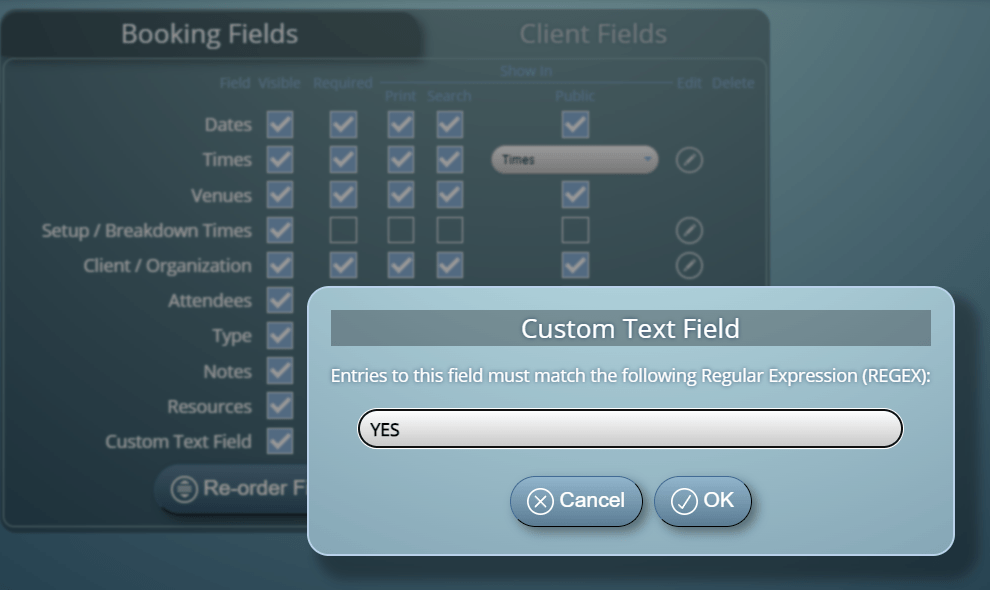
A simple Text field captures a PO number or internal cost code against each booking, ready to appear on the resulting invoice. You can even apply input validation to a text field using a regular expression, so MIDAS only accepts entries that match the format your finance team expects.
An expected-numbers slider
While MIDAS already records attendees, a Range slider can be handy for capturing a softer estimate – for instance a “Confidence in numbers” or “Setup complexity” scale – giving your team a quick visual cue when they open the booking.
Ideas for custom client fields
A salutation or title
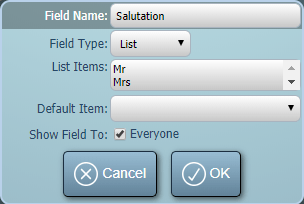
A List (Single Select) client field with items like Mr, Mrs, Ms, Dr, and Rev means your emails and letters can address clients correctly, drawing on the field automatically through your templates.
Insurance certificates and contracts
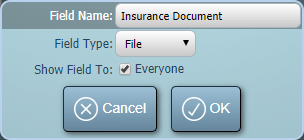
On self-hosted systems, a File client field lets you attach an insurance certificate, signed contract, or accreditation document straight to a client’s record – so it’s always to hand when you need it, rather than buried in someone’s inbox.
Membership or account numbers
A Text or Number client field is the natural home for a membership ID, account reference, or loyalty number, keeping it alongside the rest of the client’s details.
Putting your fields to work in templates
Custom fields aren’t just for the booking screen. Each one becomes available as a template variable, so you can include its value in booking confirmation emails, invoices, and print outs. Rename or remove a custom field, and MIDAS automatically updates the corresponding variable references in your templates for you.
Getting started
Custom fields are managed via MIDAS Admin Options → Fields, where you can switch between your booking fields and client fields and add as many of your own as you need. For the full details, see our Manage Fields help documentation.
However you run your bookings, custom fields let you shape MIDAS around your process rather than the other way around. If you come up with a clever use of your own, we’d love to hear about it!