Posts Tagged: addons

Introducing the MIDAS MCP Server: Manage Your Bookings With Any AI Assistant

MIDAS MCP Server

Booking and scheduling should be quick. Yet checking whether a room is free, adding a booking, or pulling up next week’s schedule still usually means logging in, clicking through menus, and filling in forms. What if you could simply ask?

We are pleased to announce the new MIDAS MCP Server add-on, which lets you connect your MIDAS room and resource booking system directly to the AI assistant of your choice, including Claude, ChatGPT, and Google Gemini. Once connected, you can check availability, add and amend bookings, look up clients, manage resources, and even raise invoices, all through natural conversation.

What is an MCP server?

MCP stands for Model Context Protocol. It is an open standard that lets AI assistants connect securely to other software and data sources. On its own, an AI assistant has no way to look things up in your systems or carry out actions in them. An MCP server bridges that gap. It exposes a defined set of “tools” that an AI assistant is allowed to use, so the assistant can read information from a connected system and, where permitted, make changes to it too.

Because MCP is an open standard, any AI platform that supports it can connect to a compatible MCP server. That means the MIDAS MCP Server is not tied to a single AI provider. You choose the assistant you already use and prefer, and connect it to MIDAS.

Book and manage rooms using plain English

Once the MIDAS MCP Server is enabled and connected to your AI assistant, everyday booking tasks become as simple as asking a question. For example, you could say:

  • “Is the Boardroom free tomorrow afternoon?”
  • “Book Studio 1 from 2pm to 4pm on Friday for a client meeting.”
  • “Show me all bookings for Meeting Room 3 next week.”
  • “Which rooms are available on Thursday morning for 20 people?”
  • “Generate an invoice for last month’s confirmed bookings for Acme Ltd.”
  • “Who is the client with the email address [email protected]?”

Your AI assistant translates each request into the appropriate action, sends it to MIDAS, and replies in plain English. There are no menus to navigate and no forms to complete for these routine tasks.

A booking and scheduling system that works with your AI agent

If you have been searching for a booking, scheduling, or calendar system that integrates with your chosen AI agent or platform, the MIDAS MCP Server is designed for exactly that. It turns MIDAS into a fully AI-accessible booking system, without locking you into any one AI provider.

This opens the door to more than just chat. Because any MCP-compatible AI assistant or agent can connect, you can build assistants and automations around your booking data. Think of a front-of-house assistant that answers availability enquiries, or an agent that drafts invoices from the week’s confirmed bookings. If a platform supports MCP, it can work with MIDAS.

Availability

The MIDAS MCP Server is an optional add-on available from MIDAS v4.43 (or later). It’s available for both cloud-hosted an self-hosted editions of our booking system.

Existing customers (running MIDAS v4.43 or later) can add the MCP Server add-on to their system via mid.as/upgrade.

New customers can obtain MIDAS with the optional MCP Server add-on via mid.as/pricing.

Which AI platforms are supported?

The MIDAS MCP Server works with any AI assistant or platform that supports the Model Context Protocol, including:

  • Claude (Anthropic), via both Claude Desktop and the Claude web and mobile apps.
  • ChatGPT (OpenAI), via its Connectors feature.
  • Google Gemini, via the Gemini CLI.
  • Other MCP-compatible platforms, including a growing range of AI-powered tools and agent platforms.

Support for MCP is expanding quickly across the AI industry, so the list of compatible platforms continues to grow.

Built with security and control in mind

Giving an AI assistant access to your booking system is a significant step, so our MIDAS MCP Server puts you firmly in control:

  • Read-only mode – Start by allowing enquiries and availability checks only. The AI can look things up but cannot change anything. Enable write access later, when you are ready.
  • Secure by default – Connections require HTTPS and are protected by a confidential MCP key that you generate and can revoke at any time.
  • IP restrictions – Optionally limit access to specific IP addresses.
  • Your existing rules still apply – Every action taken through the MCP server respects the same permissions and business rules that already govern your MIDAS system. You can even configure the MCP to inherit the permissions of a specific user account.
  • A clear activity trail – Actions taken through the MCP server can be recorded in your MIDAS Recent Activity log, so you can see what was done.

Everything you can do

The MIDAS MCP Server provides a comprehensive set of tools covering the full range of day-to-day booking and administration tasks, including:

  • Checking venue and resource availability
  • Adding, amending, deleting, and restoring bookings
  • Approving and rejecting pending booking requests
  • Looking up and managing clients
  • Managing venues, venue groups, and bookable resources
  • Checking consumable stock levels
  • Raising, amending, and generating invoices
  • Sending notifications and emailing clients
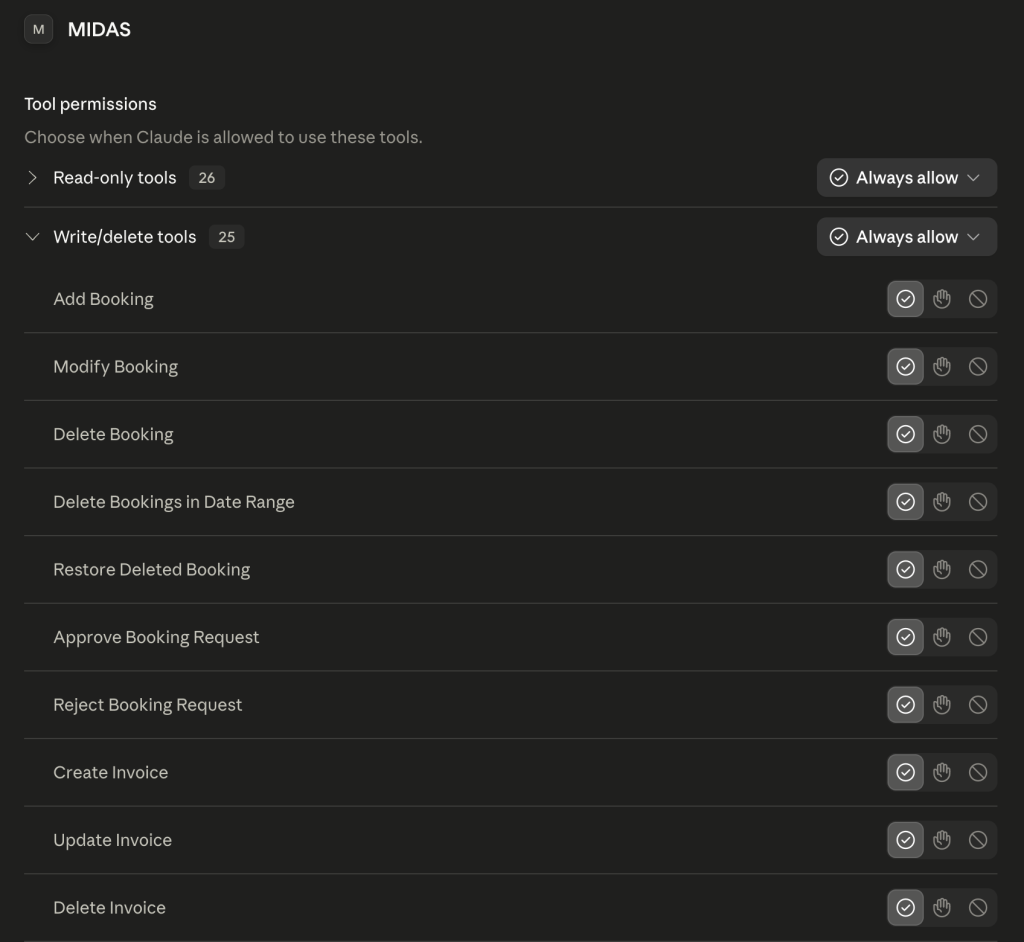
Some of the tools available in the MIDAS MCP Server (shown here in Claude Desktop)

Read-only tools retrieve information only, while write tools can create and change data. If you run the server in read-only mode, only the read-only tools will be available.

Getting started

Setting up the MIDAS MCP Server takes just a few minutes:

  1. Get the MCP Server addon (mid.as/upgrade for existing customers, mid.as/pricing for new customers)
  2. Enable the MCP Server addon and connect your AI assistant (here’s how)
  3. Start asking your AI assistant about your bookings.

Full instructions for each supported platform, including Claude, ChatGPT, and Gemini, are available in our documentation.

Read the MIDAS MCP Server documentation and get started »

The future of booking is conversational

AI assistants are quickly becoming part of everyday working life. With the MIDAS MCP Server, your booking and scheduling system is ready to be part of that shift. Whether you want to check availability at a glance, speed up routine admin, or build richer automations around your booking data, the MIDAS MCP Server connects MIDAS to the AI tools you already use.

Existing MIDAS customers can find out more and get set up today on our MIDAS MCP Server pages. New to MIDAS? Discover why MIDAS is the flexible, affordable choice for room and resource booking, now with AI built in.


Showing availability and taking bookings from your own website

One question we’re often asked is some variation of “how can people see our availability, or book with us, directly from our own website?” It’s a great question, and MIDAS gives you a few different ways to do exactly that. In this post we’ll walk through the options and help you pick the right one.

There are three features to know about. Two of them, Public Booking Requests and Public Web Bookings, are included as standard in every MIDAS system. The third, Web Calendars, is an optional add-on. They solve different problems, and they also work nicely together.

At a glance

FeatureWhat it doesIncluded or add-on?Best for
Web CalendarsEmbeds a calendar of your bookings into your own website, so visitors can see what’s on.Optional add-onDisplaying your schedule or availability on your site.
Public Booking RequestsLets visitors check availability and submit a booking request, which you approve before it becomes confirmed.Included as standardTaking enquiries you want to review before confirming.
Public Web BookingsLets visitors make and pay for a confirmed booking directly, with no approval step.Included as standardInstant, self-service bookings with online payment.

If you just want people to see what’s on

Sometimes you don’t need visitors to book anything online at all. You simply want to show them what’s already happening, or whether a particular space is free, right there on your own website. That’s what the Web Calendars add-on is for.

Web Calendars generates a tidy daily or monthly calendar of your bookings that you can embed directly into a page on your website using an IFRAME, or simply link to. You control exactly which venues and booking types appear, and how much detail is shown. With a little custom styling, you can even reduce a calendar down to a simple “available or booked” display for a particular room.

Web Calendars is our most popular add-on, but it is an optional paid extra rather than a standard feature. You can add it to your system at any time via mid.as/upgrade, or include it from the outset when you first purchase.

If you want people to request a booking

If you’d like visitors to be able to ask to book a space, but you want the final say before anything is confirmed, use Public Booking Requests. This feature lets non-users check your availability and submit a booking request, which lands in your system awaiting approval. A request only becomes a confirmed booking once a venue manager approves it.

This is ideal when you need to vet bookings, for example to check details, confirm payment separately, or simply make sure the request is appropriate before it goes in the diary. You can also restrict requests to particular email domains, and even set certain request types to be approved automatically.

If you want people to book and pay instantly

If you’d rather let visitors book a space there and then, with no approval step, use Public Web Bookings. This works much like Public Booking Requests, but instead of creating a request, it creates a confirmed booking straight away, including an online payment step so the visitor pays at the point of booking.

To accept payments for Public Web Bookings, you’ll first need to enable Stripe or PayPal in your system.

Both Public Booking Requests and Public Web Bookings are disabled by default, and need to be switched on by an administrator via MIDAS Admin Options → Public before they can be used.

The best of both: display and book together

Here’s where it all comes together. Web Calendars isn’t only for display. You can configure a calendar so that when a visitor clicks a date, they’re taken straight to your Public Booking Request or Public Web Booking screen, with that date already selected for them.

That means you can show an attractive calendar of what’s on directly on your own website, and let visitors click through to request or book an available slot in a couple of taps. It’s a great way to combine a polished public-facing display with the booking features already built into your MIDAS system.

Which should you choose?

  • Want to show your schedule or availability on your website? Use Web Calendars.
  • Want visitors to request a booking that you approve? Use Public Booking Requests.
  • Want visitors to book and pay instantly? Use Public Web Bookings.
  • Want to display and let them book in one journey? Use Web Calendars linked to either of the public booking features.

Whichever route suits you, you can find full setup details in our help documentation for Public Booking Requests, Public Web Bookings, and the Web Calendars add-on. If you’re not sure which is the best fit for your organization, just get in touch and we’ll be happy to point you in the right direction.


Send Watch Notifications to your Discord server

We have a couple of new and exciting addons available for MIDAS v4.40+.

Our optional “Discord” addon joins our existing range of addons which allow events occurring in your MIDAS booking system to be posted to your organization’s communication channels.

We already have addons that support popular communication platforms Slack and Microsoft Teams. Now we’re adding Discord to this list.

Discord is a popular free communication platform that allows users to interact through text, voice, and video. Users can join or create servers, which are essentially chat rooms organized around a specific topic.

A MIDAS "Watch" notification appearing in a Discord server
A MIDAS “Watch” notification appearing in a Discord server

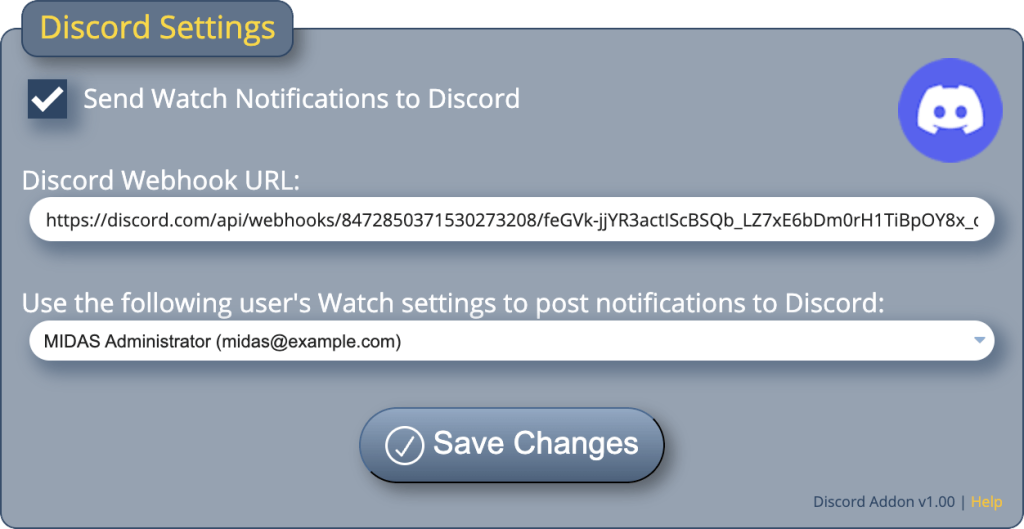
Setting up this new MIDAS addon is as simple as obtaining a Discord WebHook URL, and selecting which MIDAS user’s Watch notifications should be sent to your Discord server.

MIDAS Discord addon settings

To learn more about Watch notifications in MIDAS, watch our short “How to setup watch notifications” tutorial.

To find out more about the new Discord addon, head over to mid.as/discord.


Schedule Zoom Meetings from bookings

We have a couple of exciting brand new addons available for MIDAS v4.40+.

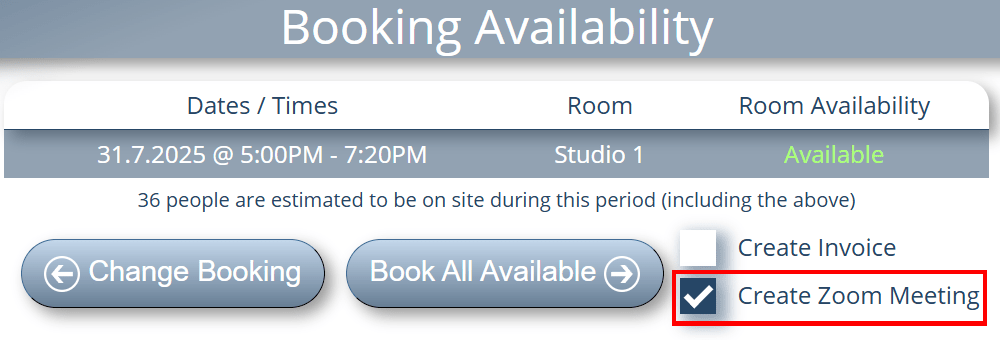
Our optional “Zoom Meetings” addon adds a “Create Zoom Meeting” option to the Booking Availability screen.

Create a Zoom meeting along with the booking
Option to create a Zoom Meeting for the booking

If this option is selected when a booking is added, a corresponding Zoom meeting will also be automatically scheduled for the same time (an active Zoom account is required).

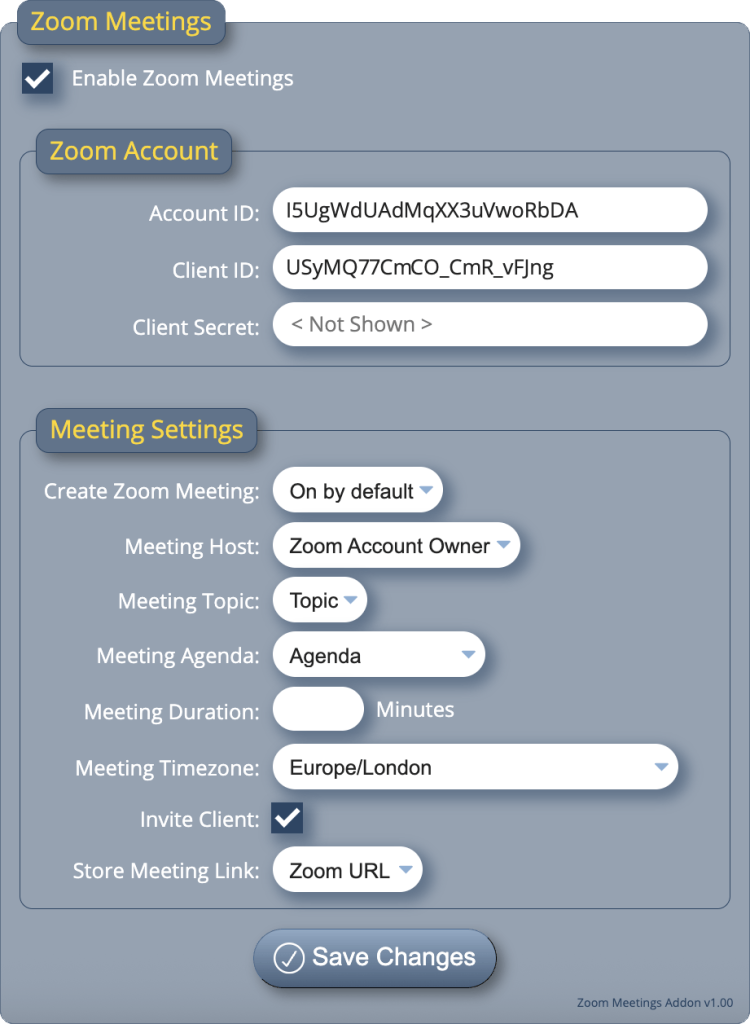
You can also configure the addon to automatically send a link to the Zoom meeting to the client via email, and for that link to be stored in a custom field for the booking, allowing users easy access to it.

A number of other settings are available too, which can be used to customize the Zoom meetings that this addon can automatically schedule…

Zoom Meetings addon settings in MIDAS

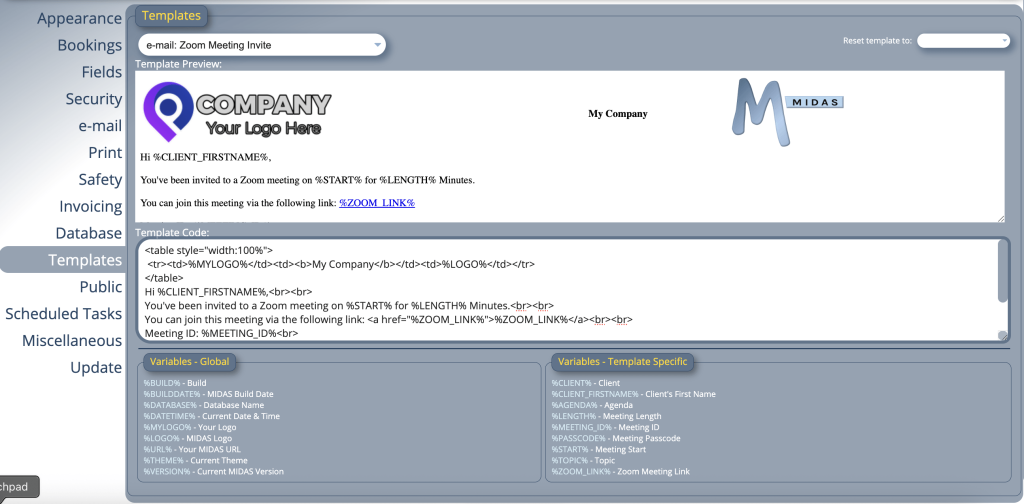
..and there’s also an email template you can customize for the Zoom meeting invite links that can be automatically sent to your clients…

New Zoom meeting invite email template

Expanding possibilities

Not only does the new Zoom Meetings addon make it simple to schedule Zoom meetings which correspond to your bookings, but it also opens up new possibilities!

Until now, MIDAS could primarily be used to book and schedule ‘physical’ spaces and resources.

But with the addition of the Zoom Meetings addon, MIDAS can now be used to schedule “virtual” spaces and meetings with your clients.

This opens up MIDAS to new business sectors who use Zoom as a primary tool for client communications, such as…

  • Online Counselling
  • Consulting and Coaching – Business consultants, life, career, or executive coaches, marketing consultants.
  • Education and Training – Tutors and educators, corporate trainers, language tutors.
  • Financial and Legal Services – Financial planners, accountants, bookkeepers, lawyers and legal consultants.
  • Health and Wellness (non-counseling) – Personal trainers and fitness coaches, dietitians and nutritionists, meditation or yoga instructors.

To learn more about the new Zoom Meetings addon, visit mid.as/zoom-meetings.