Over the past few months we’ve been busy working on the next update to MIDAS, v4.14, and this upcoming release contains a wealth of new and improved features, which we’re really excited to introduce you to here on our blog…
We’ve made a couple of notable improvements around invoice “auditing” in v4.14 to help make it easier for you to keep tabs on your invoices. These new improvements will allow administrators with access to the invoicing capabilities of MIDAS to:
View the complete history log for each invoice
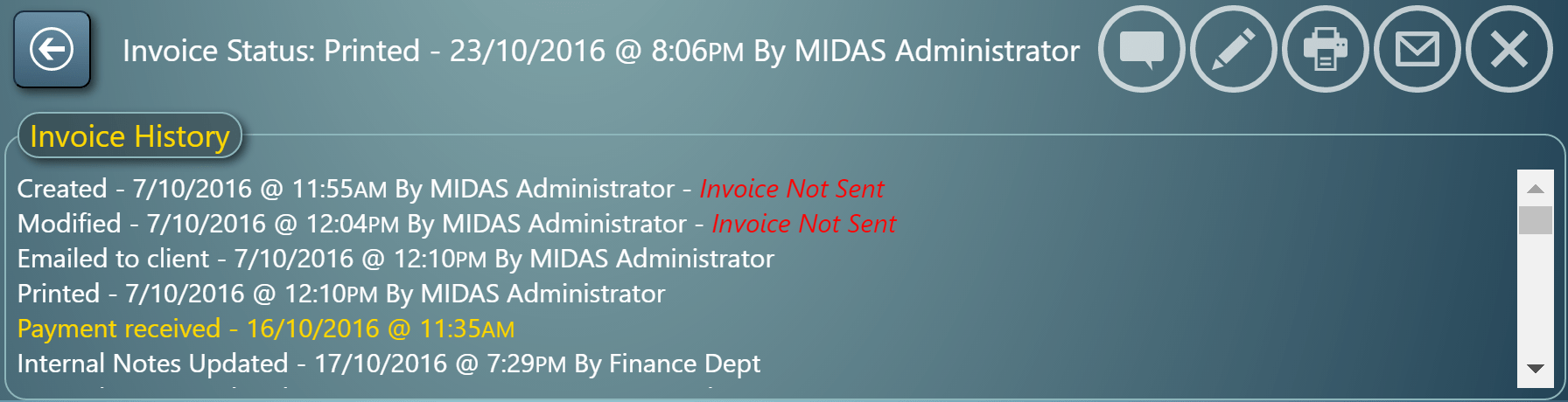
Whilst MIDAS keeps a log of all actions and activity relating to each invoice, in previous versions of MIDAS, only the most recent action on an invoice has been displayed on screen.
However, when viewing an invoice in v4.14, you’ll be able to click the latest invoice status line at the top of an invoice to open the complete history log for that particular invoice:
Store internal notes & comments with each invoice
The ability to add visible “notes” to an invoice, which are then included on the finalized printed or emailed invoice sent to a client have been around in MIDAS for a while now.
However, we’ve also received a number of requests from customers who’d like to have the ability to additionally add “internal notes” to invoices as well (notes which don’t appear on invoices themselves and which are therefore hidden from clients), so that they can better keep tabs on each invoice.
To that end, in v4.14 we’ve added a “Comments” icon to the Invoice toolbar that’s shown whenever you view an invoice. Clicking this icon will allow you to view or edit internal notes/comments for the selected invoice:

As these notes/comments are “internal”, they are only visible to those MIDAS users able to access the invoice. Internal notes/comments are never included on an actual printed/emailed invoice and therefore are not disclosed to the end client an invoice is for.
Continue reading about some of the other exciting improvements coming in v4.14 here!


 Our password strength indicator has been a feature for administrators creating new user accounts since v4.07. For v4.13, we’ve also made this useful visual indicator available whenever an end-users changes their password. The visual indicator classifies the password as either “Very Weak”, “Weak”, “Fair”, “Good” or “Strong” as you type, with a corresponding color to match (i.e. Red = Very Weak, Orange = Fair, Green = Strong). This classification is based upon a number of factors including the length of the password, the presence of upper and lower case letters as well as numbers and special characters, and whether the password has been banned.