2 minute read time · Updated March 2, 2026 · First published February 23, 2026
MIDAS v4.42 introduces a new advanced print option that allows bookings to be printed for specific days of the week within a selected date range.
The “Print” icon in the MIDAS toolbar allows for quick printing of bookings shown in the current booking grid.
Right-clicking (or long-pressing on touch devices) this icon opens an advanced print dialog.
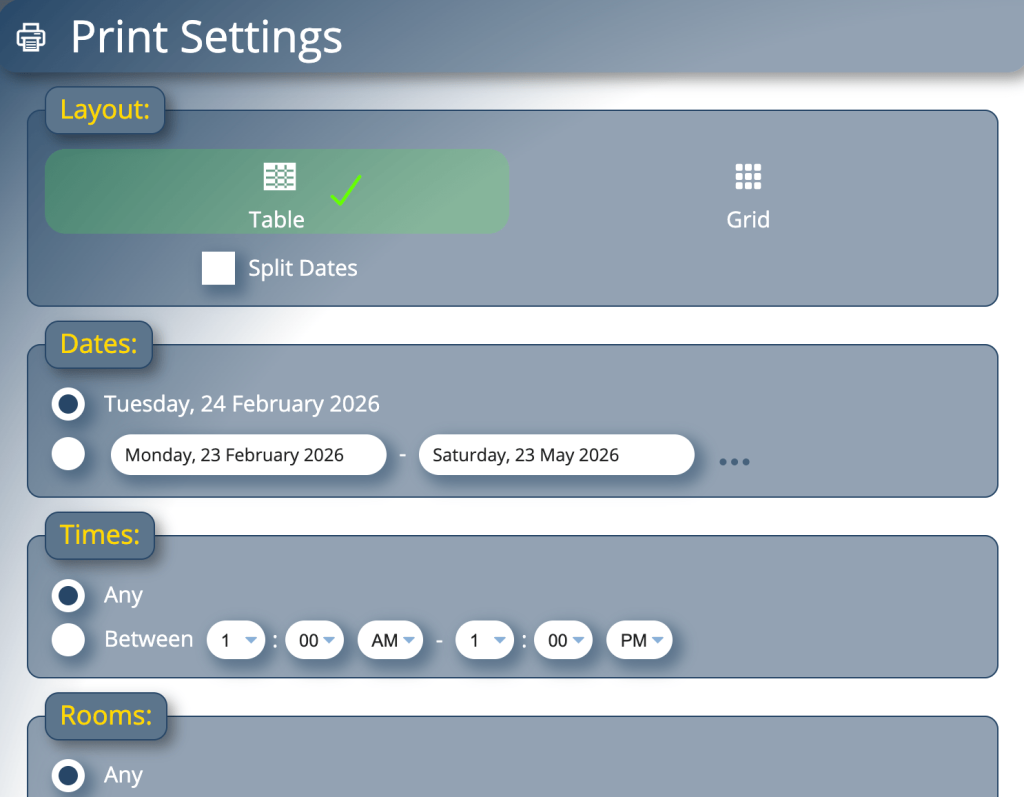
Advanced booking print settings dialog in MIDAS v4.42
From this dialog, you can customize the booking printout in a number of ways:
Change the layout
Set the date range
Restrict to certain times
Restrict to certain rooms
Restrict to certain booking types
Filter bookings based on advanced criteria
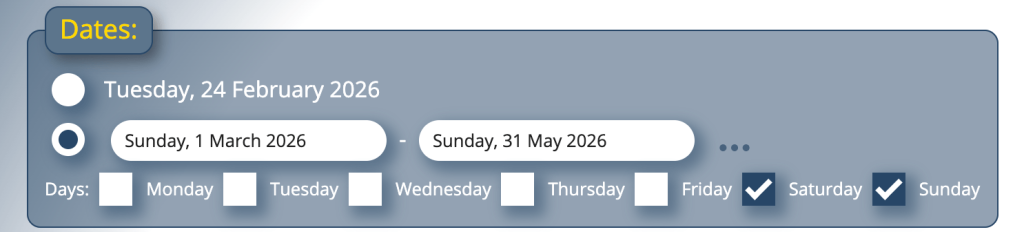
We’ve improved the date range customization section in MIDAS v4.42 to now also allow selection of specific days of the week across the selected date range.
Option to restrict printing of bookings over a date range to certain days of the week
Previously, selecting a date range would simply include bookings for each and every day in the range. Now you can limit this to only include bookings on certain days of the week.
For instance, if you’re only interested in printing bookings that take place on Saturdays and Sundays over the next three months, you can now do so.
This makes it easier to generate focused and concise booking printouts without unnecessary information.
3 minute read time · Updated December 15, 2025 · First published December 15, 2025
Whilst we love adding new and improved features in every software update, we also know that user interface (UI) and user experience (UX) are important too!
We’ve made a number of UI/UX improvements for our latest update. Some of these will be immediately noticeable, others are more subtle.
In this post, we’ll highlight some of the UI and UX improvements in MIDAS v4.41.
A more concise user bar
If you’ve been using MIDAS for a while, you’ll be familiar with the “user bar” which is shown directly under the main date heading:
The previous “user bar” in earlier versions of MIDAS
The “user bar” indicated who was signed in, and provided options to sign out, change your password, access help, or make MIDAS go fullscreen. You could also click your name to show a list of all the devices you were currently signed in from.
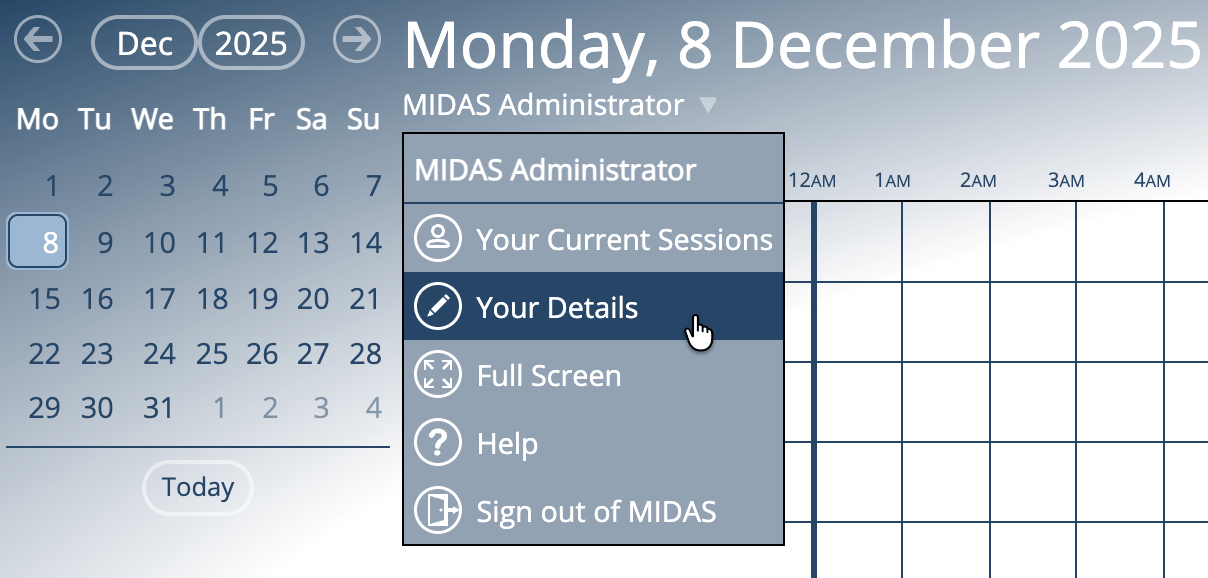
We’ve decluttered this area for v4.41. Now, just your name will be shown under the main date. You can select your name and a new drop-down list will appear:
New User Drop-Down in MIDAS v4.41
This new drop-down contains the following options:
Your Current Sessions – view details of all the devices you’re currently signed into MIDAS from, and remotely sign out any you’re not actively using.
Your Details – as v4.41 introduces new permissions allowing users to change their name or email, the previous “Change Password” link has now become a “Your Details” option in the new drop-down. Depending on the permissions assigned to your account, this option will allow you to change your display name, password, or the email address you use to access MIDAS.
Full Screen – quickly enter or exit full screen mode.
Help – open the help documentation.
Sign out of MIDAS – instantly sign out at any time.
New icons
You may have spotted some new icons alongside the options in that new user drop-down above.
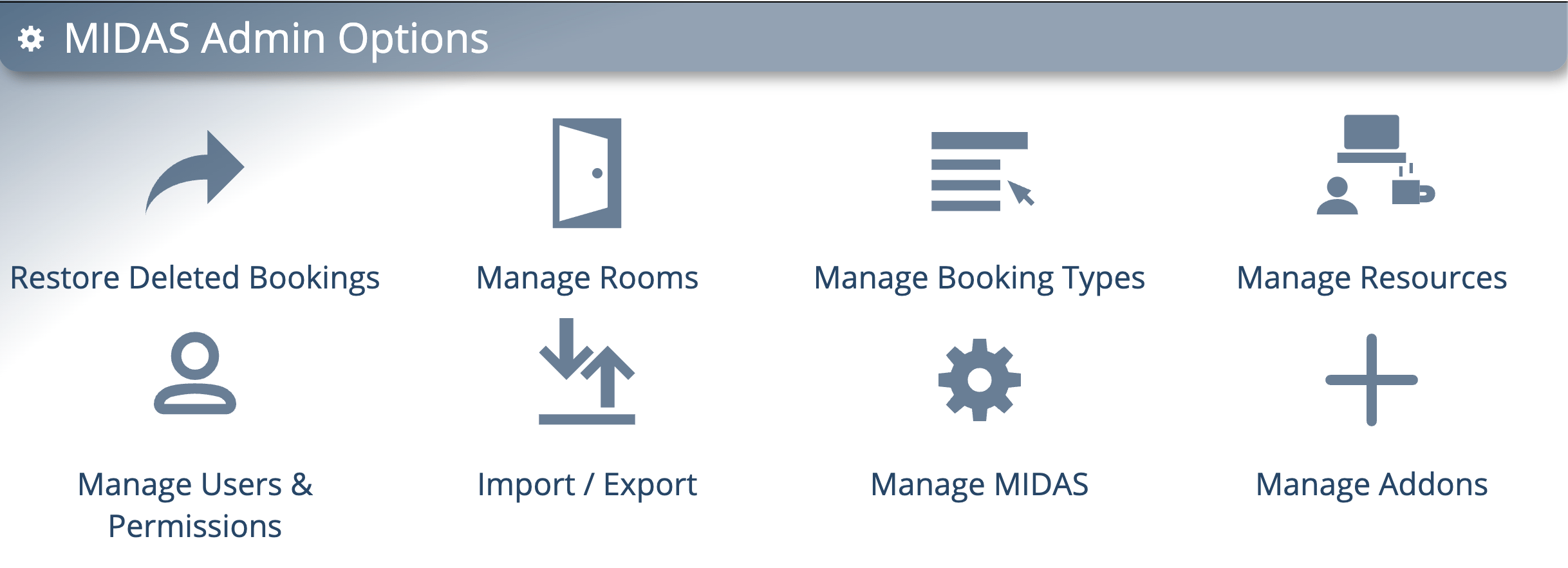
Well, this isn’t the only place you’ll see some new icons in MIDAS v4.41. We’ve also created a new set of icons for the options on the main administration creen:
New icons on the MIDAS Admin Options screen
Previously all the options on this screen used the “cog” icon used for the “Manage MIDAS” option. We felt it was about time for a refresh, and that each of the options on this screen deserved their own unique icons.
Improved graphs with tooltips
In case you missed our post a few days ago, for v4.41 we’ve rewritten the graphics code that MIDAS uses to generate graphs on the statistics (reporting) screen.
Graphs now have tooltips
Bar graphs and pie charts now show tooltips when you move your cursor over each segment. Furthermore, we’ve also adjusted how dates are shown along the bottom axis in bar charts to prevent overcrowding.
Info, Tips, Warnings, and More!
The help documentation has also had a bit of makeover for v4.41. Not only have we improved its accessibility, we’ve also made some visual changes.
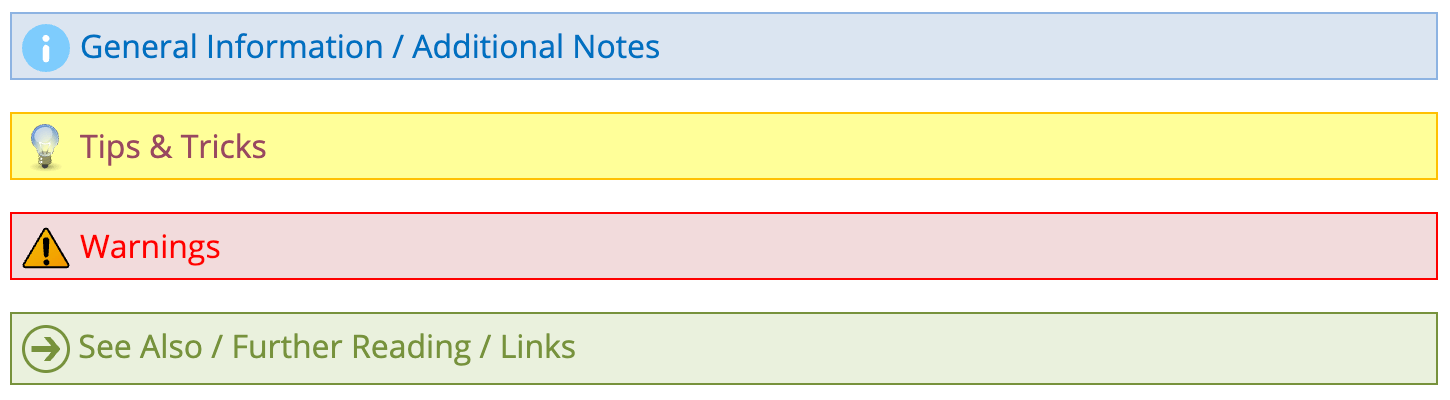
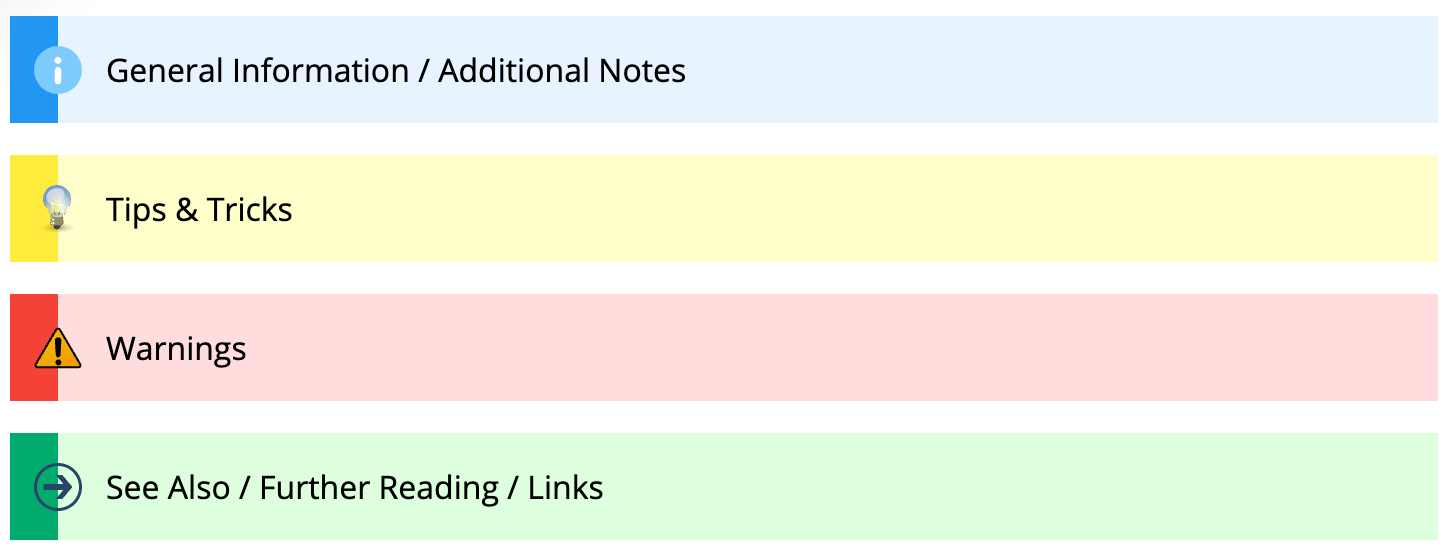
Throughout the documentation you’ll see coloured boxes with either additional information, helpful tips, warnings, or links to more resources.
Here’s how these looked in the documentation before v4.41:
…and here how these look now:
It doesn’t end there!
Whilst these might be the main UI/UX improvements we’ve made for v4.41, we’ve also made numerous other small improvements to the user interface and user experience in our latest update – too many to list here!
So whilst we’ll continue to add exciting new features and functionality with every new release, we’ll also be working to continually improve your user experience too!
3 minute read time · Updated May 6, 2026 · First published December 12, 2025
The ability to import data from other software is crucial to those looking to change booking systems. This is especially true if they wish to retain existing data from their current scheduling solution.
MIDAS supports importing data from a range of applications – if your current application can export bookings, clients, or users in common CSV format, the chances are you can import this directly into MIDAS.
We’ve made some enhancements for v4.41 to better support those looking at MIDAS as an alternative to Skedda.
Support for importing “Multi-Room” Bookings
Traditionally, booking data in CSV format contains “one booking per line” in data file. That is to say that each “line” of data in the CSV relates to a single booking.
Data exported from Skedda is a little different. If a client has bookings in multiple spaces/rooms at the same time, Skedda sees these as a single “multi room” booking, rather than as individual bookings in each space.
Consequently, multi-room bookings continued within an exported Skedda CSV data file occupy a single “line” (or “row”) in the file.
We’re pleased to announce that MIDAS v4.41 now supports importing “multi room bookings”.
Support for importing dates / times in additional formats
Booking systems store dates and times in various formats. This means that when data is exported from them, there isn’t necessarily a standardized date format that they all follow.
When it comes to importing booking data into a MIDAS booking system, our software can recognize dates and times in a variety of formats.
Here’s a complete list of the date/time formats MIDAS supports when importing booking data – including two new ones for v4.41:
Single Dates:
DD.MM.YYYY (Example: 26/11/2025)
DD.MM.YY (Example: 26/11/25)
MM.DD.YYYY (Example: 11/26/2025)
MM.DD.YY (Example: 11/26/25)
YYYY.MM.DD (Example: 2025/11/26)
YYYY.DD.MM (Example: 2025/26/11)
YY.MM.DD (Example: 25/26/11)
YY.DD.MM (Example: 25/11/26)
DD.Mon.YYYY (Example: 26-Nov-2025)
DD.Mon.YY (Example: 26-Nov-25)
Single Dates with Times:
DD.MM.YYYY HH.MI (Example: 26/11/2025 16:30)
MM.DD.YYYY HH.MI (Example: 11/26/2025 16:30)
YYYY.MM.DD HH.MI (Example: 2025/11/26 16:30) ← NEW FOR MIDAS v4.41
YYYY.DD.MM HH.MI (Example: 2025/26/11 16:30) ← NEW FOR MIDAS v4.41
HH.MI.SS – Day DD Month YYYY (Example: 16:30:00 – Wednesday 26 November 2025)
Date / Time Ranges:
HH.MI-HH:MI, Day DD Month YYYY (Example: 16:30-17:30, Wednesday 26 November 2025)
Day DD Month YYYY HH.MI – Day DD Month YYYY HH.MI (Example: Wednesday 26 November 2025 16:30 – Wednesday 26 November 2025 17:30)
The various date and time formats that MIDAS supports when importing data cover those used by many popular booking systems, including MRBS, Skedda, and more.
So if you’re looking to move away from your current booking solution, and that system allows you to export booking data, you’ll likely be able to import it directly into MIDAS.
Not sure if your data is compatible? No problem! Just reach out to our sales team (perhaps include a sample of the data you’d like to import), and they’ll be happy to advise!
2 minute read time · Updated December 11, 2025 · First published December 11, 2025
We’ve completely re-written the code which generates graphical reports and statistics in MIDAS for v4.41.
Previously, bar graphs and pie charts were dynamically rendered within HTML <canvas> elements. This had a number of limitations, and so starting with v4.41, we’ve switched to dynamically rendering graphs using SVG instead.
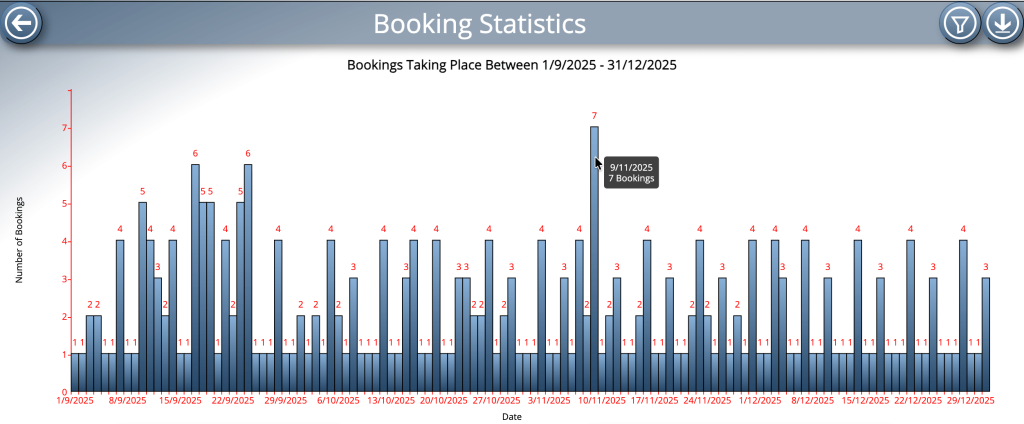
The most notable benefit to this is that we can now show “tooltips” when you hover over elements within a graph.
Graphs now have “tooltips” in MIDAS v4.41
Another issue we’ve addressed when rewriting graph code is that of x-axis scaling.
Most vertical bar graphs which MIDAS can generate have dates along their x-axis. As MIDAS allows you to select a date range for many generated reports, the resulting x-axis could represent a single date, or a very wide date range spanning several years.
Until now, MIDAS would label each date within the selected range on the X-axis. For larger date ranges, these labels would all overlap causing an illegible mess along the X-axis.
Now that we’re able to bring dynamic “tooltips” to graphs in v4.41, it’s no longer necessary to display labels for every date in the selected range along the bottom axis. That’s because these tooltips will show the date of the bar your cursor is ‘hovering’ over.
Consequently, for large date ranges, the X-axis will now only be labelled with select dates within that range. This produces a far clearer bottom axis, which we’re sure you’ll appreciate.
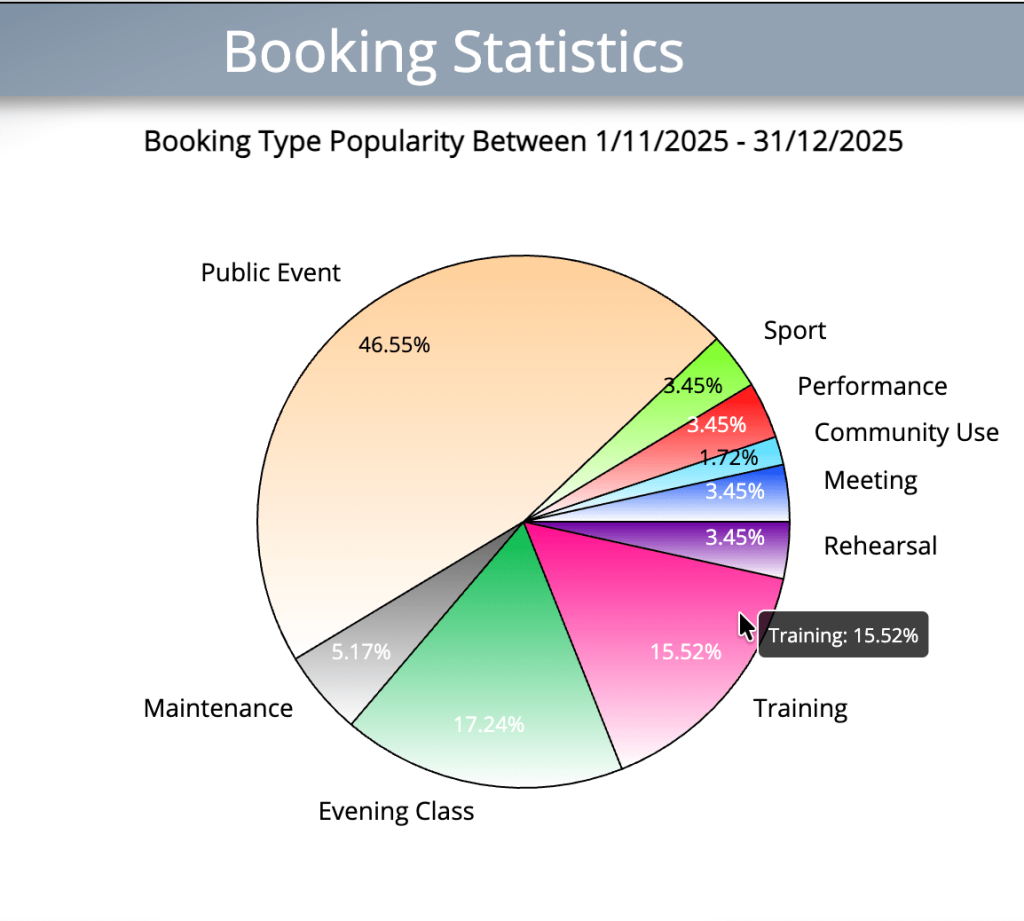
Floating “tooltips” aren’t just confined to bar charts – they’ve also been added to pie charts too!
Pie Charts also now have floating “tool tips” too!