As the wet and windy wintry weather shows no sign of letting up here in the UK, we continue to put the finishing touches to the next update to our MIDAS web based room booking and resource scheduling software, v4.24.
In our previous article, we announced support in v4.24 for a new multi-select custom list field. In this blog post, we’re revealing a new user permission we’re adding to our forthcoming update.
“User Permissions” in MIDAS allow administrators to precisely control what each user account within the system can access. From very restrictive “view only” permissions to fully-fledged administrator – and everything in between! In fact, there are in excess of 30 individual permissions you can set on a per-account basis. A full list of these permissions may be found here.
For v4.24 we’re adding a new additional user permission: “Can Bypass Venue Blocks”. To understand the purpose of this new permissions, we first need to understand what “Venue Blocks” actually are..
What are venue “blocks”?
Back in 2014, we introduced “Venue Blocks” to MIDAS. You can read more about this cool feature in this blog post. Essentially, venue “blocking” allows administrators to set up rules so that when a certain venue is booked, another venue is then automatically blocked from having any bookings during the same time period.
An example of where this may be useful is in a Church environment where you have a quiet prayer room adjacent to a sports hall. It may be desirable to prevent noisy bookings taking place in the sports hall when there’s a prayer meeting happening in the room next door. This is where Venue Blocking comes in.
Another example might be a large room which can either be hired as a whole space, or sub-divided and hired as two separate, smaller rooms. Obviously, if one of the sub-divisions is booked, another booking couldn’t take place in the space as a whole at the same time. Again, this is where Venue Blocking in MIDAS becomes really useful, as you can easily prevent such occurrences.
Bypassing Venue Blocks
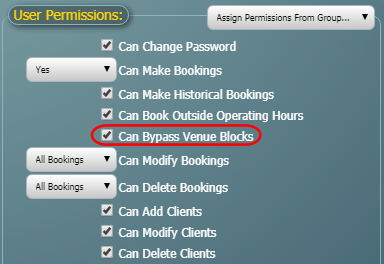
Until now, however, there has been no way to “override” venue blocks, short of removing the blocks from venues themselves. That’s why we’re introducing the new “Can Bypass Venue Blocks” permission for v4.24:
New “Bypass Venue Blocks” permission in v4.24
This permission isn’t granted to any user by default. However, any user account subsequently granted the “Can Bypass Venue Blocks” permission, can then make bookings regardless of any venue blocking rules in effect.
We’re sure this additional user permission will be of considerable use in helping you manage your bookable spaces more effectively. And once again, this improvement is being implemented as a direct result of feedback from our users. We love hearing feedback and suggestions for improvement and new features from our customers. Why not vote on some suggestions and let us know what you’d like to see in MIDAS in the future!
The new decade has gotten off to an unusually windy and wet start here in the UK. We’ve taken a bit of a battering from Storm Ciara and Storm Dennis in quick succession. It’s not been very nice weather to go out in at all! So instead, we’ve been spending a lot of time indoors working away at the next update to our MIDAS web based room booking and resource scheduling software.
Our first update in 2020 includes a host of new and improved features, which we’re going to give you a look at in the coming blog posts.
In this post we’re going to cover the first of these new features coming in MIDAS v4.24:
Multi-Select Custom List Fields
One of the reasons our room bookings software is so flexible and versatile is that we allow you to create your own bespoke booking fields, and more recently your own bespoke client fields too!
The types of custom booking/client fields you can create in MIDAS are as follows:
Checkbox – A “tick box” field
File – (self-hosted editions only) Allows uploading/attaching of files and documents to client records
List – A drop-down list of pre-defined items
Number – A field that will only accept numerical input
Range – A “slider” control allowing selection of a numeric value within a defined range
Text – A single-line text field
Text Area – A multi-line text field
URL – A navigable web link to an external resource
Documentation on how to create and use custom fields in your MIDAS system may be found here. We also have a short tutorial covering custom fields too:
TUTORIAL: How to Control & Customize Fields in MIDAS
Until now the custom “List” field allowed users to select a single item from a list of pre-defined values created by an administrator, and assign the selected item to the booking or client record.
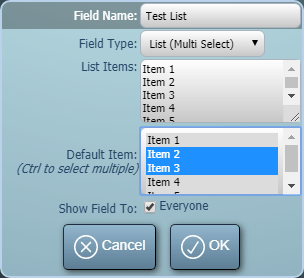
For v4.24, we’re expanding the custom “List” field options to additionally include a “multi select” list option. Administrators can now also create drop-down lists from which users may select multiple options.
Administrators will of course also be able to select which option (or options) in the list are selected by default, and also control whether the list is visible to all users, or restricted to just certain users:
New multi-select custom field option in MIDAS v4.24
We’re excited about the new custom “multi-select list” field option coming in v4.24. Once again, this has been implemented as a direct result of customer feedback. Remember, we love feedback and feature requests from our customers, so do vote and let us know what you’d like to see in future updates to our software.
Four years after the UK narrowly voted to leave the European Union, the day has come when the UK will officially exit the EU. This will happen at 11pm UK time this evening, Friday 31st January 2020. There then follows an 11 month transitional period. During this transition, the UK will continue to abide by EU laws and regulations. At the same time, it will negotiate it own trade deals with both the EU and the rest of the world.
As we are a UK-based business we wanted to take this opportunity to again reassure our customers about our position and the impact on MIDAS during this transition.
We’d like to remind customers that all our administrative operations are based here in the UK. Our primary server infrastructure resides in the United States (with backup systems in the UK). We have no staffing or physical infrastructure in other EU countries. Therefore, the UK exiting the EU later today will not affect the day-to-day running of our own operations going forward.
Over 90% of our customers will reside outside of EU countries once the UK leaves the EU. Consequently, any subsequent volatility within the EU itself will have a negligible impact on our financial position.
We continue to do business across the globe – including with other EU states. Our current and future EU customers are no less valued than our customers in any other country. This won’t change after today’s Brexit.
Pricing and Exchange Rates
As you may be aware, we recently revised the pricing model for the cloud-hosted edition of our software. We have now, however, adjusted our prices as a result of the UK’s decision to leave the EU.
As we offer payment for MIDAS in a number of global currencies (including Euros), our prices automatically update daily based on global exchange rates. Previously these automatic updates were based on the exchange rate that particular day alone. Since the Brexit vote was delivered back in June 2016, and the fluctuations this caused in currency exchange rates, we’ve improved our exchange rate calculations. They are now instead based on an “average” of the exchange rate over the previous 8 weeks. This helps smooth out any short term “blips” that may occur from day-to-day. The result is a more consistent price is shown on our website for non GBP currencies, including Euros.
In conclusion..
We’re hopeful and excited about the UK’s future in the global economy. Whilst we are “Brexiting” today, our EU customers – both existing and future – won’t be treated any differently. For all intents and purposes, it continues to be “business as usual” here at MIDAS HQ!
It’s a brand-new year – in fact, it’s a brand-new decade – and we’re starting 2020 with an update to the pricing model for new cloud hosted editions of our MIDAS room booking and resource scheduling software.
We’ll explain more about that in a moment, but first a little background into the history of our pricing structure…
A Brief History of MIDAS Pricing…
When we launched the first versions of MIDAS way back in 2005, “hosted” applications (also known as “SaaS” or “Software as a Service”) were few and far between.
Initially, in the very early planning stages of MIDAS, we envisaged our software being something that customers could download and run on their own web servers.
In those days, our software was charged at a one-off fixed price for everyone. It quickly became clear however that there was also a demand for a “hosted” MIDAS solution in addition to a “downloadable” one.
Introduction of a “cloud hosted” software solution
We subsequently introduced a “remotely hosted” option. This was charged at the same one-off initial price as the “downloadable” version, but with an additional small “annual subscription” element. The subscription element covered the cost of hosting.
This worked well for the first five years. We were always conscious though that larger organizations, such universities with dozens – if not hundreds – of users and rooms were paying the same price for our software as the smallest of Churches with just a handful of rooms and a single administrator.
We didn’t think this was very fair. In an effort to address this in 2011 we introduced a “lite” version of MIDAS. This cut-down budget version didn’t include many of the advanced features – such as invoicing – that the full version had.
MIDAS “Lite”
MIDAS “lite” partially addressed this imbalance, but we still didn’t feel it went quite far enough. There were still some small organizations who didn’t have many rooms or users. But because they still wanted to use the invoicing features of MIDAS, they were forced to go with the “full” version of MIDAS.
That’s why in August 2012, we completely reworked our pricing structure. Gone was the “lite” version of MIDAS. Instead, we offered only the “full” version, but with a tiered pricing structure based on the number of “venues” (rooms/bookable spaces) to be managed and number of user accounts required. This went on to make MIDAS far more accessible to organizations of all shapes and sizes, and has served us well for over 7 years.
Throughout this time, the cost of MIDAS – whether “cloud” hosted or “self” hosted – still consisted of an initial one-off cost (i.e. “buying” the software), and an annual subscription element. The subscription element covering software updates and priority support was optional for “self hosted” customers. For “cloud hosted” customers, the subscription covered hosting, software updates, and support.
However, the rise of SaaS applications has sky-rocketed over the past 7 years. It’s now common place to find businesses which offer access to their application(s) for a flat monthly or an annual subscription fee, without having to ever “buy” the software itself.
We’ve also heard from our own customers, some of whom were put off by the initial high “one off” cost element when “buying” a cloud-hosted edition. Some of our customers would instead prefer to pay a simple monthly or annual subscription fee.
We’ve listened and that’s why from 1st January 2020 our pricing structure for new customers is as follows:
New & Existing Self-Hosted Customers:
There is no change to the pricing model for new or existing self-hosted customers. Pricing remains an initial “one time” cost (i.e. you’re “purchasing” the software). We still offer an entirely optional Annual Support Subscription, which provides access to software updates and Priority Support.
Existing self-hosted customers who wish to migrate over to a cloud-hosted system, would need to purchase a new cloud-hosted subscription, and contact us to arrange for existing data/settings from their previous self-hosted system to be migrated across.
New Cloud-Hosted Customers:
The cost of MIDAS no longer includes an initial “one time” cost element. Instead, simply priced monthly and annual subscription plans are now offered.
In essence, new cloud-hosted customers are no longer “buying” MIDAS, but rather “renting” it on a monthly/annual basis.
Comparative illustrative USD pricing example for a Cloud-Hosted MIDAS system (1 user / 10 venues) over 3 years:
…if purchased before 2020:
Initial Cost: $868 ($639 (one time) + $229) 2nd Year Cost: $229 3rd Year Cost: $229
Total paid after 3 years: $1,326
…if purchased from 2020 onwards:
Initial Cost: $339 2nd Year Cost: $339 3rd Year Cost: $339
Total paid after 3 years: £1,017
Addons & Upgrades for new Cloud-Hosted Customers:
Under the previous pricing model (pre 2020), optional addons and upgrades for cloud-hosted customers typically involved a single one-time cost. Under the new pricing model (2020 onwards), upgrading your license or adding addons will affect your subsequent monthly/annual subscription price. A small pro-rata charge would be levied in the interim.
Existing Cloud-Hosted Customers:
We greatly value our existing and loyal customers, many of whom have been with us for years. We have no plans to move existing cloud customers onto the new cloud pricing structure. Cloud-hosted customers who purchased MIDAS prior to 1st January 2020 will continue to see familiar Annual Hosting + Support renewal prices. These will in most cases work out lower than annual subscription prices for comparable new systems purchased from 2020 onwards.
There are no changes to addon/upgrade pricing for existing Cloud-Hosted customers who purchased MIDAS before 2020.
In summary, we hope that these improvements to our cloud-hosted MIDAS pricing structure will help make our software accessible to even more businesses and organizations, even those on the tightest of budgets. Gone is the initial high “one time” cost outlay, and instead we’ve introduced simple and straight forward low monthly and annual subscription pricing.
If you have any questions over the new cloud-hosted pricing model, please feel free to reach out to us, and we’ll be happy to assist!
In the meantime, we’d like to wish you a very happy and prosperous 2020!
 Four years after