Category: Development

New Two-Factor Authentication

Two-Factor Security We take a very pro-active approach to the security of our customer’s MIDAS systems and data, and we always strive to provide administrators and users alike with a wealth of security features and settings within our software.

→ Read our Tips for keeping your MIDAS secure

We’re further enhancing the security options available in our web based room booking and resource scheduling software by introducing optional two-factor authentication in MIDAS v4.10.

Enable two-factor authentication in MIDAS
Enabling two-factor authentication in MIDAS

What is Two-Factor Authentication?

Traditionally, when you access a website/app/online service which requires you to “log in”, all you need to provide is your username (or email address) and a password in order to authenticate your access.

Unfortunately, many people use the same credentials (username/password) over and over again for multiple websites/apps/online services. This means that if one of those services gets “hacked” and has a data breach and user’s credentials are exposed, an attacker could potentially then access all other websites/apps/online services the user uses.

Two-factor authentication combats this, by employing a secondary means of authentication in addition to the traditional username/password combination in order to authenticate your access to the website/app/online service when you login. This means that even if your username/password were compromised, an attacker couldn’t then use these on their own to gain access to your account.

How does two-factor authentication work within MIDAS?

Without two-factor authentication enabled in MIDAS v4.10, users simply login using their email address and chosen password. (A wealth of other customizable security features however are already built-in to MIDAS help prevent “brute force” attacks)

However, with the new optional two-factor authentication feature enabled in v4.10, users enter their email address and password as normal, but then MIDAS then emails the user a security code and presents a web page for this code to the entered. Once the user enters the code they’ve received in an email, the two-step login process will be complete and they will be successfully logged into MIDAS.

Two-factor login authentication for MIDAS
Entering a one-time code to complete your login

This ensures that in order to gain access and login to MIDAS, a user needs to know their MIDAS credentials and also have access to their own email account to retrieve a special security code upon each login.

As such, for two-factor authentication to be an effective security tool, users should ensure that they use a unique password for their MIDAS account (i.e. one which isn’t the same as the password they use to login to their own email account!)

For more information on the existing security settings and features available within MIDAS, please see the Manage Security Settings section of the help documentation.

Want to help shape and improve future MIDAS updates? Then why not consider becoming a Beta Tester? – it’s free, there’s nothing to install, and no technical knowledge is required!

Booking Alternatives

Over the past couple of blog posts, we’ve been looking at some of the new features coming in our next update to MIDAS, v4.09, including high resolution SVG graphics, and the ability to assign multiple email addresses to each client.

However, the features we’re perhaps most excited about, revolve around those instances where you encounter an “Unavailable” on the Booking Availability screen because the venue/times you’ve specified would conflict with an existing booking.

We’ve made two significant improvements in this area for v4.09 – firstly, an icon will appear alongside any instance of “Unavailable” which you can hover your mouse over to see full details of the existing booking which conflicts with the one you’re trying to make, in the Booking Information Panel.

But wait – that’s not all! MIDAS v4.09 is also capable of offering you booking “alternatives” in the event of a conflicting booking!

MIDAS can offer alternative bookings in the event that the desired dates, times, and room aren't available
Booking Alternatives

MIDAS can offer you alternative times for the booking you’re trying to add (i.e. earlier or later than you’d originally specified), as well as alternative venues at the times you’re trying to book. Selecting one of the offered alternative times/venues can be done with a single click from the Booking Availability screen, so there’s no more having to go back and “Change Booking” to try a different time/venue yourself, MIDAS will offer such alternatives for you!

What’s more, we’re giving you lots of control over the “Booking Alternatives” feature…

Booking Availability Settings

For instance, you can control whether MIDAS should offer earlier times, later times, alternate venues, or any combination of the three.

Furthermore, when offering earlier/later alternative times, you can enforce a “spacing” (or “buffer”) between the conflicting booking and the proposed alternative.

Where MIDAS is set to offer alternative venues, you can specify for each of your venues which other venues should be offered as suitable alternatives:

Setting up alternate venues in MIDAS
Set up alternate venues for each venue in MIDAS

Watch a short 3 minute video tutorial on the new Booking Alternatives feature:

Booking Alternatives Tutorial

Add Multiple Email Addresses For Clients

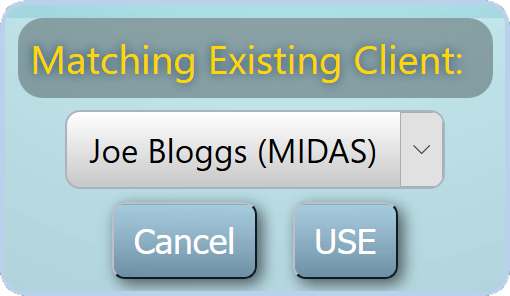
Multiple Email Addresses For ClientsThe next release of our web based room booking and resource scheduling software, MIDAS is just around the corner, and we’re giving you a “sneak peek” at some of the new and improved features coming with this next update!

Today we’re excited to tell you about an improvement coming to client records within MIDAS. Until now, it’s only been possible to associate a single email address with each client record. This has meant that booking confirmations and reminders as well as invoices can only be sent to the single email address on record for the client in question.

From MIDAS v4.09, you’ll now be able to specify multiple email addresses for each client record, and accordingly, email correspondence (such as booking confirmation/reminder notifications, and invoices, etc) can be automatically sent to multiple email addresses.

Why might this be useful?

Well, we’ve had a number of requests from customers for such capability when it comes to client email addresses. For example, some customers have clients where the email contact for the booking itself differs from the email contact for invoicing. This new improvement to email addresses in MIDAS v4.09 will allow you to assign both the booking contact’s email address and the invoice contact’s email address to the same client record, so that all email correspondence from your MIDAS will go to both!

Similarly, if you have a booking for an external organization, for which there is more than one contact person, you could create a generic client for the organization, and add all their contact email addresses to it, thus ensuring that correspondence is distributed to them all.

Important information for Cloud-Hosted users

  • Cloud-Hosted customers who have their MIDAS system configured to send email via the built-in “Sendmail” option will be limited to sending email to a maximum of two email addresses per client record.
  • Cloud-Hosted customers who have their MIDAS system configured to send email via the external “SMTP” option will be limited to sending email to a maximum of five email addresses per client record.
  • To avoid these limits, and be able to assign as many email addresses to an individual client record as you’d like, please consider switching to a self-hosted edition. These limits on the number of email recipients are not applied to self-hosted editions.

New High Resolution SVG Graphics

Something interesting is happening in the world of video displays. At one of end of the spectrum, mobile device screens are becoming ever smaller. However, at the other end, TV and computer screens are becoming increasingly larger. But in both cases, the actual display “resolution” is increasing exponentially. Resolution refers to the picture detail, or the number of individual “dots”, known as “pixels”. High Definition (HD) and Ultra High Definition (4K UHD) displays are fast becoming the norm.

We’ve designed MIDAS to be visually “responsive”. That means that it adapts itself to displaying on a wide range of device screen and orientations, including desktops, laptops, tablets, and mobile devices.

For MIDAS v4.09 we’re also introducing a new special “High Resolution” theme. This is ideally suited if you access MIDAS from a device with a large, high definition, screen.

So how does this “High Resolution” theme work?

Well, traditionally, images and icons within the various visual themes for MIDAS have been in JPG or PNG image formats.

These are very common, standard, image formats which have been around for years. They’re used on just about every website you’ll visit!

JPG images are traditionally used for photographic or background images. In fact, in the majority of the visual themes available for MIDAS, a .jpg image is used as the main background image. JPG images are “compressed” leading to small file sizes (and therefore faster downloading times) whilst retaining a high level of detail.

PNG images on the other hand are traditionally “lossless”, meaning they retain all the original image information without compression. They have the advantages over JPG of being higher quality and also allowing for transparency. However, they but have the disadvantage of typically being larger in size than a JPG equivalent image.

MIDAS makes use of PNG images for the various buttons and icons contained within each theme.

We carefully optimize both JPG and PNG images within the various theme packs available for MIDAS to make them as small and as quick to load as possible, without noticeably affecting image quality.

One major downside of both image formats however is that neither “scale” particularly well….

Enter SVG!

SVG stands for “Scalable Vector Graphics”. An AVG image can be scaled up without any loss of quality or blurred edges.

Here’s a good way to illustrate this using the standard “Add Bookings” PNG icon found in the default theme which ships with MIDAS:

png iconscaled png icon
The icon at normal sizeThe icon at x3 its original size

Now, let’s look at an equivalent SVG icon:

svg iconscaled svg icon
The icon at normal sizeThe icon at x3 its original size

As you can see, at its original dimensions (40 x 40 pixels) both the PNG and SVG icons look virtually the same. However, scaling both by a factor of three leaves the PNG icon looking distinctly “blurry”, whilst the SVG equivalent retains its “crispness”.

That’s why, for the benefit of users with very high resolution displays, we’ve created a “High Resolution” version of the Default theme for MIDAS v4.09 which uses SVG icons, and SVG gradient backgrounds. We’ve also made the traditional blue background image slightly less of an intense “blue” as a result of customer feedback.

Here’s an example of how the traditional “Default” theme compares with the new “High Resolution” theme in v4.09:

UPDATE – 22 May 2015: MIDAS v4.09 has now been released and we’re including both the Default and the Default (High Resolution) themes with this build.
If you’re running MIDAS on your own server, here’s how to Configure your server to handle SVG images so that you can take advantage of the new High Resolution theme!