Fixed: Cumulative roll-up of various fixes for issues discovered since v4.26
How To Get MIDAS v4.27…
“Self Hosted” Customers:
Self-Hosted customers with active Support Subscriptions will be able to update to v4.27 in the coming weeks. It only takes a couple of clicks – simply log in to your MIDAS system and go to MIDAS Admin Options → Manage MIDAS → Update.
If no update is available, please check back again in a few days time, as we are staggering updates for self-hosted customers over the next few weeks.
“Cloud Hosted” Customers:
Cloud-Hosted customers don’t need to do anything! – All our active Cloud-Hosted MIDAS customers will be automatically updated to this latest version of MIDAS this coming weekend (13-14th March 2021)
15% OFF for our 15th Anniversary!
To celebrate our 15th year in business, all this week we’re offering 15% OFF NEW PURCHASES OF MIDAS.
We believe in giving customers maximum choice. That’s why we offer MIDAS in both a cloud-hosted edition (with monthly and annual subscription options), as well as a self-hosted (on-premises) edition for a one-time cost (with an optional subscription)
With this generous 15% discount, your organization can start scheduling with MIDAS for less than $30!
To get 15% off your initial purchase of MIDAS, simply head over to our secure checkout, and use the Promo Code MIDAS15.
You’ll need to hurry though! – This limited time offer expires on 14th March 2021
March 2021 marks 15 years since the first public release of MIDAS.
MIDAS v1.00 was first unveiled to the world on 11th March 2006.
Where it all began…
Work began on MIDAS in December 2005. At that time, Mark Harrington, the creator of MIDAS, was working in a brand new Performing Arts College – the first one of its kind in Greater Manchester, UK.
This new school for students aged 11-16 boasted impressive state-of-the-art facilities. These included a sports hall, gymnasium, all weather pitch, atrium, conservatory, a 300-seat community theatre, outdoor stage, recording studios and rehearsal space.
All these spaces were to be available for internal use by the school. Then in the evenings and at weekends, they would be hired out to external and community groups.
Soon after the new school opened, the school appointed a Community Facilities Manager, Miriam, in November 2005. Her role was to oversee the booking and smooth operation of the new facilities, which were in very high demand by the local community.
It soon became apparent that the software the school had been using for handling their room bookings was not up to scratch. It was simply not meeting the increasing demands on the new facilities.
The (now defunct) software named “VenueBooker”, was slow, cumbersome, buggy, and not very user-friendly! Consequently, Miriam and Mark both spent time researching what other alternatives were available.
After much discussion, frustration, and plenty of sentences stating “wouldn’t it be great if we had a system that could…?“, they soon realized that there were no alternatives available that would do exactly what was required out of a room scheduling system.
Mark, coming from a strong programming background, was sure he could create something that would do everything a Community Facilities Manager would need to manage facilities, clients and bookings.
So Mark sat down with Miriam and the two of them “brainstormed” how she wanted the software to ideally function.
Dozens of sheets of paper later, covered with all kinds of scribbled notes, arrows, and flow charts, Mark had something to go away and work on!
Mark named the software “MIDAS”, an acronym, although to this day he remains elusive as to whether it actually stands for “Mark’s Infrastructure Daily Allocation System“, or “Miriam’s Infrastructure Daily Allocation System“(!)
Over the Christmas holidays of 2005, Mark worked diligently to develop MIDAS so that it could be “rolled out” in the new year.
He even spent New Year’s Eve sat in front of his computer at the stroke of midnight, coding away!
Within the first few weeks of 2006 (and numerous revisions of the software later!), MIDAS went “live” at the school for the first time. It transformed the way staff and external clients booked rooms.
Now, for the first time all staff could check room availability using their web browser. The booking process was simpler, efficient, and stream-lined! The number of bookings and revenue substantially increased during the year, and double-bookings were finally a thing of the past!
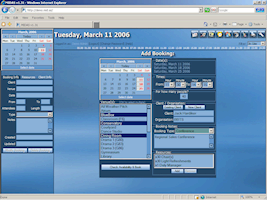
An early version of MIDAS in 2005
Going Public…
Realizing the potential of MIDAS to help other schools and organizations in similar situations, just a few months after the first prototypes, MIDAS v1.00 saw its first public release on 11th March 2006.
Fast forward to 2021…
15 years on, and MIDAS is still going strong!
Our software remains in active development, and we remain true to our original ethos of helping people better manage their facilities and resources.
New feature-rich updates are regularly released – at least 3 times every year.
Our global customer base continues to grow as word spreads about MIDAS.
Celebrating our 15th Anniversary
To coincide with our 15th anniversary, we’ll be releasing the latest update to our MIDAS software, v4.27. Learn more about what’s new in this latest version here.
Also to mark the 15th anniversary of our MIDAS room booking & resource scheduling, we’re offering new customers 15% off their purchase of MIDAS!
You’ll need to hurry though, this offer is only valid until 14th March 2021.
The future…
We’re tremendously proud to have been here for the past 15 years.
In that time, dozens – if not hundreds – of competitors have appeared (and many have since disappeared!).
To all our customers; whether you’ve been with us for the past 15 years, or just the past month – we appreciate you choosing MIDAS and sincerely thank you for your support! – You’ve committed to us, and we in turn continue to be fully committed to you.
If you’re not yet a customer, we appreciate that there’s a wealth of choice out there today when it comes to choosing a room booking system.
Maybe you’re currently considering a change and are evaluating a number of different scheduling software solutions. Don’t forget that we offer a no-risk FREE 30-day trial of MIDAS. Activate your FREE Trial today, and explore what MIDAS has to offer!
Also, when evaluating potential solutions, make sure you take into account 3 key factors:
How long a product has been around?
How frequently are software updates released?
How prompt and forthcoming is product support?
With MIDAS, you get a solid product, with a proven track record. You get a stable system that’s in active development, and with unrivalled support to back it up!
Finally, don’t forget, we’re currently offering new customers 15% off with Promo Code MIDAS15.*
* Promo Code valid until 14th March 2021 for new purchases of MIDAS only.
In this post we’ll brief touch on some of the other new features we’re introducing in v4.27.
Search results can now be easily printed
The “Print” icon in the MIDAS toolbar is really flexible! When viewing the Booking Grid, clicking the Print icon allows you to print bookings for the currently viewed date (or date range).
Furthermore, right-clicking the Print icon show advance print options allowing you to further customize booking print outs.
But that’s not all, the Print icon also allows printing in other areas of MIDAS. For example, when viewing reports/statistics, the Print icon will print the current report.
For v4.27 we’ve further extended the Print icon’s functionality in relation to search results.
When performing a search (via the “Search” toolbar icon), the Print icon can now be used to send the search results to your printer.
The Recent Activity audit log can now be exported to Excel
The “Recent Activity” feature in MIDAS allows administrators to view an audit log of all recent user activity within your booking system. This includes log ins and outs as well as bookings added, modified, and deleted.
Each entry in the Recent Activity log is timestamped with the user who performed each action, as well as their IP address.
This allows a full audit trail to be maintained for actions taking place in your MIDAS system.
For v4.27, we’ve added an “Export” button to the Recent Activity log. This allows you to easily export the log to Excel.
Exported client data now includes current credit and tax exempt status
Whilst we’re on the subject of exporting data from your MIDAS system; Exporting client data (MIDAS Admin Options → Export → Clients) in v4.27+ will now also include each client’s current credit and tax exempt status.
Note: This information will only be included in exported client data if the user performing the export has been granted the “Can use invoicing” permission.
When importing bookings, MIDAS needs to know the date format used in the data you’re importing.
Every 3rd party application stores/exports dates differently, and so we strive to support as many different date formats as possible.
Currently supported import date formats are:
DD.MM.YYYY (Example: 23/07/2021)
DD.MM.YY (Example: 23/07/21)
MM.DD.YYYY (Example: 07/23/2021)
MM.DD.YY (Example: 07/23/21)
YYYY.MM.DD (Example: 2021/07/23)
YYYY.DD.MM (Example: 2021/23/07)
YY.MM.DD (Example: 21/23/07)
YY.DD.MM (Example: 21/07/23)
DD.MM.YYYY HH.MI (Example: 23/07/2021 16:30)
MM.DD.YYYY HH.MI (Example: 07/23/2021 16:30)
HH.MI.SS – Day DD Month YYYY (Example: 16:30:00 – Friday 23 July 2021)
HH.MI-HH:MI, Day DD Month YYYY (Example: 16:30-17:30, Friday 23 July 2021)
Day DD Month YYYY HH.MI – Day DD Month YYYY HH.MI (Example: Friday 23 July 2021 16:30 – Friday 23 July 2021 17:30)
For MIDAS v4.27, we’re adding support for a couple more date formats:
DD.Mon.YYYY (Example: 23-Jul-2021)
DD.Mon.YY (Example: 23-Jul-21)
This extensive range of supported date formats for your raw booking data should cover the formats used by most 3rd party applications.
If you have booking data that you wish to import that doesn’t conform to one of the above date formats, please let us know and we’ll try and add support in a future update.
Advanced filter improvements
When advanced printing or when generating invoices, MIDAS offers an advanced “filter” option. This allows you to include/exclude bookings from your printout/generated invoice(s).
For v4.27 we’ve imported these advanced filters to now allow blank (empty) search terms.
This improvement now allows you to include/exclude bookings where a certain booking field is blank, which previously you couldn’t do.
We’ve also further improved the advanced print filter to allow filtering of bookings by invoice.
This allows you to now generate a printout of bookings which match, partially match, or don’t match a particular invoice number.
Custom logo improvements for cloud hosted customers
MIDAS allows you to “co brand” the software by uploading your own logo. This logo then appears throughout the software. For example, it is included on the login screen for your MIDAS system. It can also then be included in various templates in MIDAS – including email and invoicing templates.
Your logo may be added/changed via MIDAS Admin Options → Manage MIDAS → Appearance → Logo.
Our cloud hosted customers may notice that when changing their logo, the changes are not immediately visible. This is due to the way our network “caches” static content, like logos. Sometimes it can take up to 24 hours to a logo change to be visible.
We’re improving this for MIDAS v4.27. Now, when our cloud hosted customers change their logo, their new logo should be visible right away!
How To Get MIDAS v4.27…
“Self Hosted” Customers:
Self-Hosted customers with active Support Subscriptions will shortly be able to update to v4.27. It only takes a couple of clicks – simply log in to your MIDAS system and go to MIDAS Admin Options → Manage MIDAS → Update.
If no update is available, please check back again in a few days time, as we are staggering updates for self-hosted customers over the next few weeks.
“Cloud Hosted” Customers:
Cloud-Hosted customers don’t need to do anything! – All our active Cloud-Hosted MIDAS customers will shortly be automatically updated to this latest version of MIDAS.
The Public Booking Request feature of MIDAS allows non-users to check the availability of your rooms, and submit booking “requests” online. No user account or login is required in order to make a public booking requests.
When a booking request is made, “managers” for the requested venue are notified by MIDAS. They can then log in and quickly approve, reject, or modify the pending request.
The ability to have different managers for different rooms allows incoming requests to be filtered to the right department/person within your organization.
Public Booking Requesting is one of the most popular features of our software. It is a well feature widely used by our customers in their booking operations.
Auto Approval of Booking Requests
Back in October 2013 – with the release on MIDAS v4.04, we introduced the option to have all booking requests “auto approved”. With this option enabled, MIDAS would automatically approve all incoming booking requests with no manager intervention required.
Many customers don’t need this functionality, and instead prefer to manually review and approve each incoming booking request.
But for organizations such as large universities which allow students to book their own study rooms, the ability to have booking requests auto-approved is a real time saver.
Selective Auto-Approval
To extend this auto approve functionality though, we’re introducing a new option for MIDAS v4.27:
Auto-Approve Booking Requests from certain domains/addresses
Now, if the “Auto-Approve Booking Requests” option is enabled, there are two choices;
All
For these email addresses / domains
The “All” option retains the previous auto-approve behavior. If selected, then all incoming booking requests will automatically be approved by MIDAS (subject to availability).
The “For these email addresses / domains” option allows you to instruct MIDAS to auto-approve requests from certain email addresses or domains. This setting will take a comma separated list of email domains or individual email addresses.
If a person makes a booking requests under an email address which matches this setting, their request will be auto-approved by MIDAS.
If a booking request is made from under an email address which doesn’t match this setting, then venue managers will be notified and would need to manually review the request.
This powerful new auto-approve option can have some real benefits!
For instance, you could set anyone “internal” to your organization to have their booking requests auto-approved, whilst still requiring external requestors to have their requests manually approved.
How To Get MIDAS v4.27…
MIDAS v4.27 isn’t yet publicly available. It is expected to be made available to Beta Testers soon, with a full public release shortly after. In the meantime, why not check out some of the new features that were included in v4.26 ?