
How to fix "5.7.139 Authentication unsuccessful" email errors
Your MIDAS booking system is capable of sending email via SMTP.If you've configured your MIDAS system to send email via Microsoft's Office 365 or Outlook SMTP servers you may encounter the following error when sending email:
Error: 5.7.139 Authentication unsuccessful
The error may go on to provide further information on the reason for the unsuccessful authentication. Below are examples of some 5.7.139 error variants, their causes and resolutions:
Error: 5.7.139 Authentication unsuccessful, the user credentials were incorrect
This is the most straightforward interpretation: Microsoft rejected the login because the username and password combination did not authenticate.Common Causes
- Incorrect password (typos, outdated password, copy/paste issues).
- Wrong username format — SMTP requires the full UPN/email address, e.g., [email protected].
- Account password recently changed, but MIDAS email settings still use the old one.
- SMTP AUTH disabled at the mailbox level (it must be enabled to use smtp.office365.com with username/password).
- Basic authentication blocked tenant-wide (Microsoft disables Basic Auth by default for many tenants).
- Verify the correct mailbox username and password.
- Confirm the account can sign in at https://portal.office.com.
- Ensure SMTP AUTH is enabled:
- Per-mailbox:
Microsoft 365 admin center → Active users → Select user → Mail → Mailflow Settings → Turn on SMTP AUTH.
- Per-mailbox:
- Ensure SMTP AUTH is allowed tenant-wide:
Microsoft 365 admin center → Settings → Org settings → Modern authentication → Allow SMTP AUTH.
Error: 5.7.139 Authentication unsuccessful, the request did not meet the criteria to be authenticated successfully
This version indicates that the authentication request reached Microsoft 365 but was blocked due to policy, not because of incorrect credentials.Common Causes
- Security defaults enabled, which block SMTP AUTH entirely.
- Conditional Access policies preventing legacy authentication (e.g., blocking Basic Auth).
- Multi-Factor Authentication (MFA) enabled - password-only SMTP AUTH is incompatible with MFA.
- Your MIDAS system is attempting to authenticate from a blocked network / region.
- App Password not being used when MFA is enabled.
- Check if Security Defaults are ON:
- If so, SMTP AUTH password login will not work.
You must either:- Disable security defaults and enable SMTP AUTH, or
- Use an App Password (see the "Create an App Password" section later in this article)
- If MFA is enabled, either:
- Use an App Password (if allowed), or
- Review Conditional Access rules that block legacy protocols.
- Confirm the IP/location of your MIDAS system is allowed.
- If so, SMTP AUTH password login will not work.
Error: 5.7.139 Authentication unsuccessful, account has an issue
This version indicates that the authentication service detected a problem with the mailbox or its status, not the credentials or policies.Common Causes
- Mailbox license expired, removed, or not assigned.
- Mailbox recently created and still provisioning (can take up to 30 minutes).
- Account locked due to repeated failed login attempts.
- Account disabled in Microsoft Entra ID (previously known as Azure AD).
- Mailbox not enabled for SMTP AUTH.
- Password expired, but the account hasn't been updated yet.
- Ensure the user has a valid license that includes Exchange Online.
- Confirm the account is active (not disabled) in Microsoft Entra ID / Azure AD.
- Unlock the account if it is locked due to failed attempts.
- Reset the password if expired.
- Wait if the mailbox was newly created; retry after provisioning completes.
- Verify SMTP AUTH is enabled as described earlier.
Error: 5.7.139 Authentication unsuccessful, SmtpClientAuthentication is disabled for the Tenant
This error indicates that authentication client SMTP submission (SMTP AUTH) has not been enabled. The following instructions outline how to enable SMTP AUTH.How to enable SMTP Authentication in Office 365
The per-mailbox setting to enable SMTP AUTH is available in the Microsoft 365 admin center.- Open your Microsoft 365 admin center and go to Users → Active users.
- Select the user, and in the flyout that appears, click Mail.
- In the Email apps section, click Manage email apps.
- Verify the Authenticated SMTP setting: unchecked = disabled, checked = enabled.
- When you're finished, click Save changes.
Once you've enabled SMTP Authentication for the mail account you've specified in your MIDAS system, you should then be able to send email from your MIDAS system without encountering a "535 5.7.3 Authentication unsuccessful" error.
If you're still encountering a "535 5.7.3 Authentication unsuccessful" error, then you may instead need to create an "App Password".
An "App Password" is used in MIDAS in place of your usual SMTP password to allow you to send email via your Microsoft email (Outlook, Office 365, etc) account.
Create an App Password
If you're send mail via an Outlook account, please refer to the App Password instructions in our "How to configure MIDAS to send email via Outlook SMTP servers" article.The following instructions relate to creating App Passwords for Office 365 accounts.
- Sign in to Office 365.
- Choose Settings → Office 365.
- Choose Security & Privacy → Additional Security Verification. You’ll only see this option if your admin has set up multi-factor authentication for your organization. If you don’t see this option, contact your Office 365 admin and tell them to turn on multi-factor authentication.
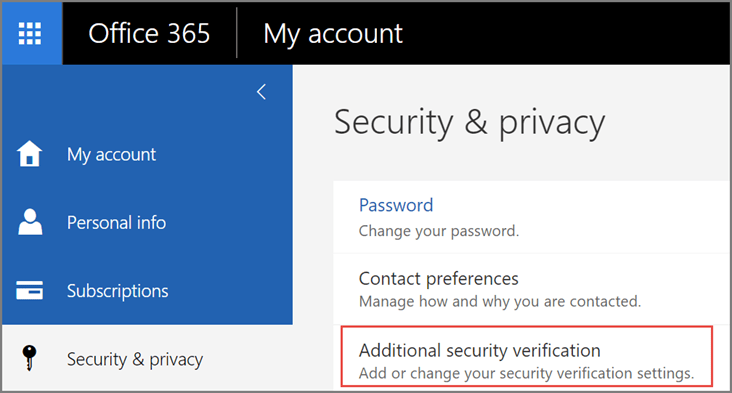
- Choose Update my Phone Numbers Used for Account Security. You should see the following screen:
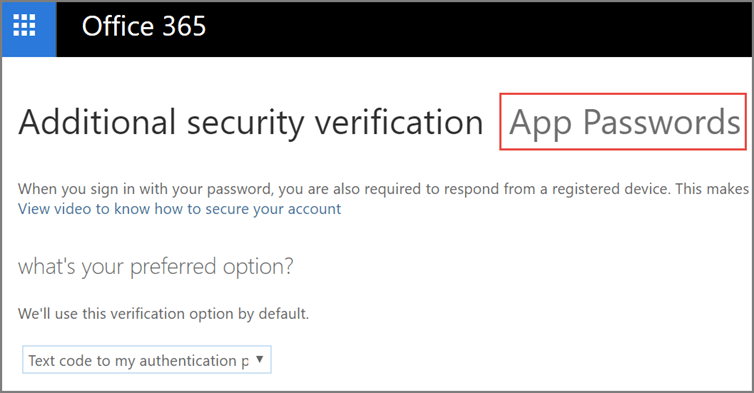
- At the top of the page, choose App Passwords.
- Choose Create to get an app password.
- If prompted, type a name for your app password (i.e. "MIDAS"), and click Next.
- Click the "copy password to clipboard" button. You won’t need to remember this password.
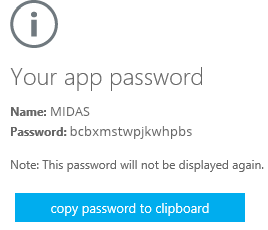
- Back in MIDAS, paste the app password in place of your usual SMTP password, and save changes.
You should then be able to send email from MIDAS via your Microsoft email account.


← Return to the Knowledge Base