Whilst we love adding new and improved features in every software update, we also know that user interface (UI) and user experience (UX) are important too!
We’ve made a number of UI/UX improvements for our latest update. Some of these will be immediately noticeable, others are more subtle.
In this post, we’ll highlight some of the UI and UX improvements in MIDAS v4.41.
A more concise user bar
If you’ve been using MIDAS for a while, you’ll be familiar with the “user bar” which is shown directly under the main date heading:

The “user bar” indicated who was signed in, and provided options to sign out, change your password, access help, or make MIDAS go fullscreen. You could also click your name to show a list of all the devices you were currently signed in from.
We’ve decluttered this area for v4.41. Now, just your name will be shown under the main date. You can select your name and a new drop-down list will appear:
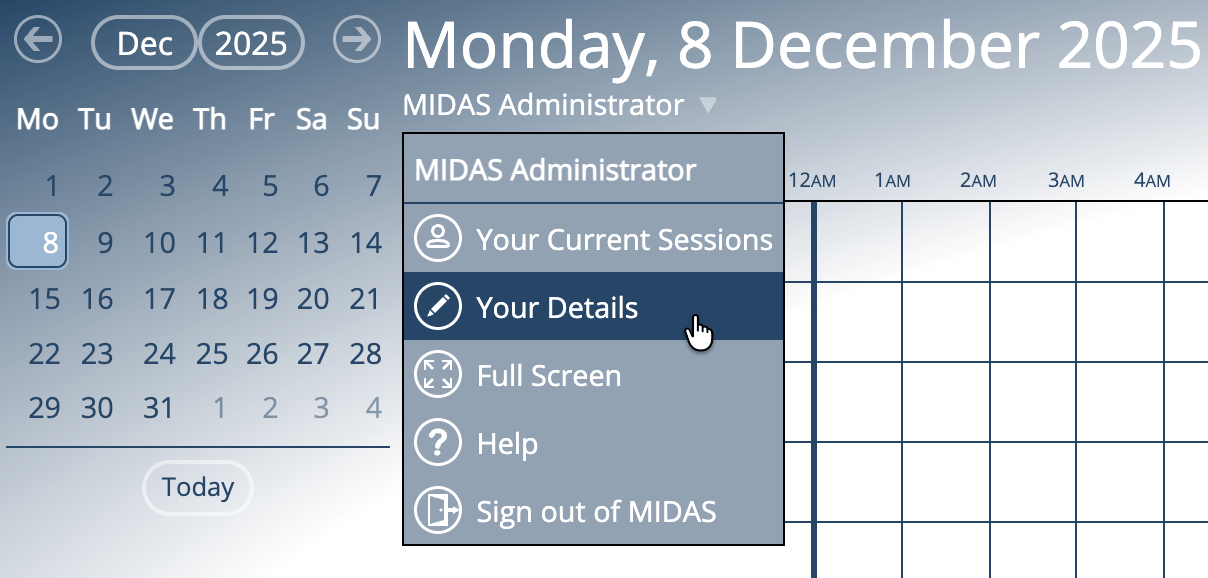
This new drop-down contains the following options:
- Your Current Sessions – view details of all the devices you’re currently signed into MIDAS from, and remotely sign out any you’re not actively using.
- Your Details – as v4.41 introduces new permissions allowing users to change their name or email, the previous “Change Password” link has now become a “Your Details” option in the new drop-down. Depending on the permissions assigned to your account, this option will allow you to change your display name, password, or the email address you use to access MIDAS.
- Full Screen – quickly enter or exit full screen mode.
- Help – open the help documentation.
- Sign out of MIDAS – instantly sign out at any time.
New icons
You may have spotted some new icons alongside the options in that new user drop-down above.
Well, this isn’t the only place you’ll see some new icons in MIDAS v4.41. We’ve also created a new set of icons for the options on the main administration creen:
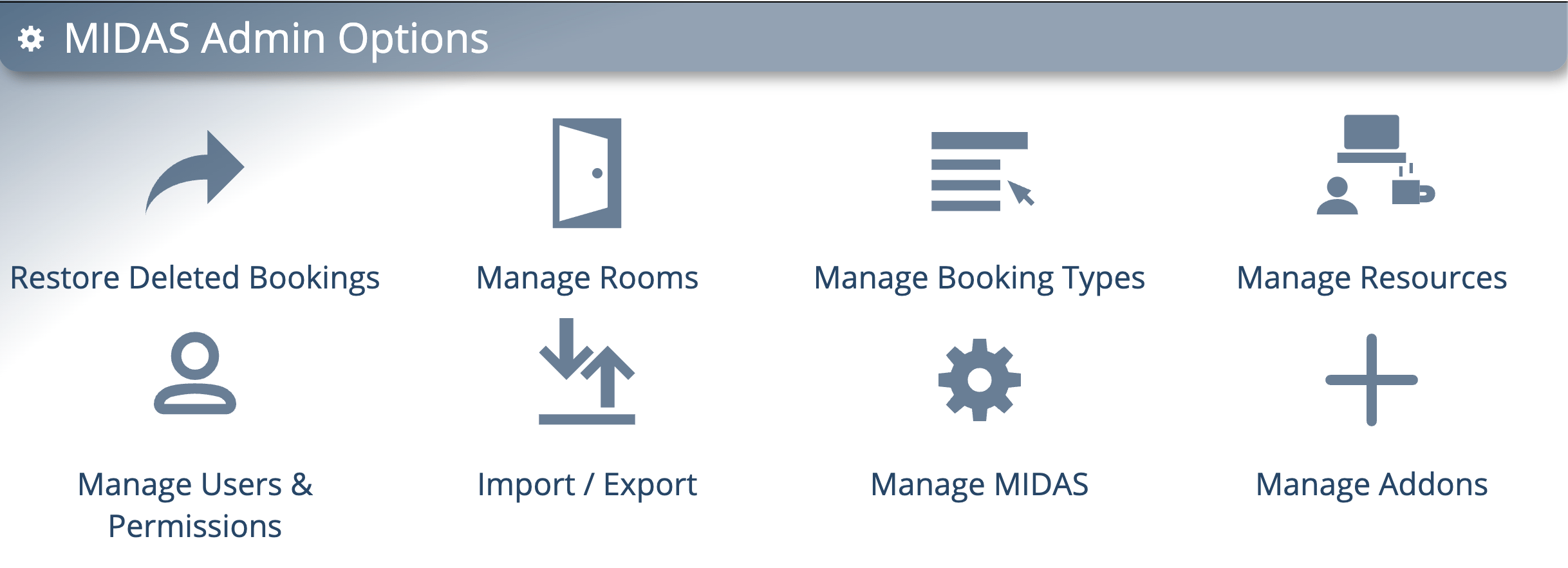
Previously all the options on this screen used the “cog” icon used for the “Manage MIDAS” option. We felt it was about time for a refresh, and that each of the options on this screen deserved their own unique icons.
Improved graphs with tooltips
In case you missed our post a few days ago, for v4.41 we’ve rewritten the graphics code that MIDAS uses to generate graphs on the statistics (reporting) screen.

Bar graphs and pie charts now show tooltips when you move your cursor over each segment. Furthermore, we’ve also adjusted how dates are shown along the bottom axis in bar charts to prevent overcrowding.
Info, Tips, Warnings, and More!
The help documentation has also had a bit of makeover for v4.41. Not only have we improved its accessibility, we’ve also made some visual changes.
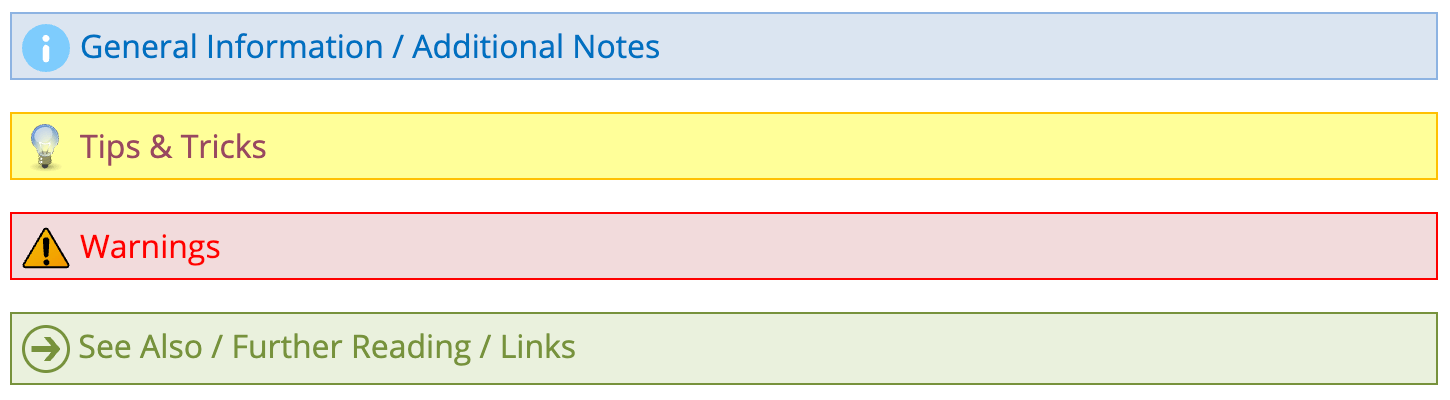
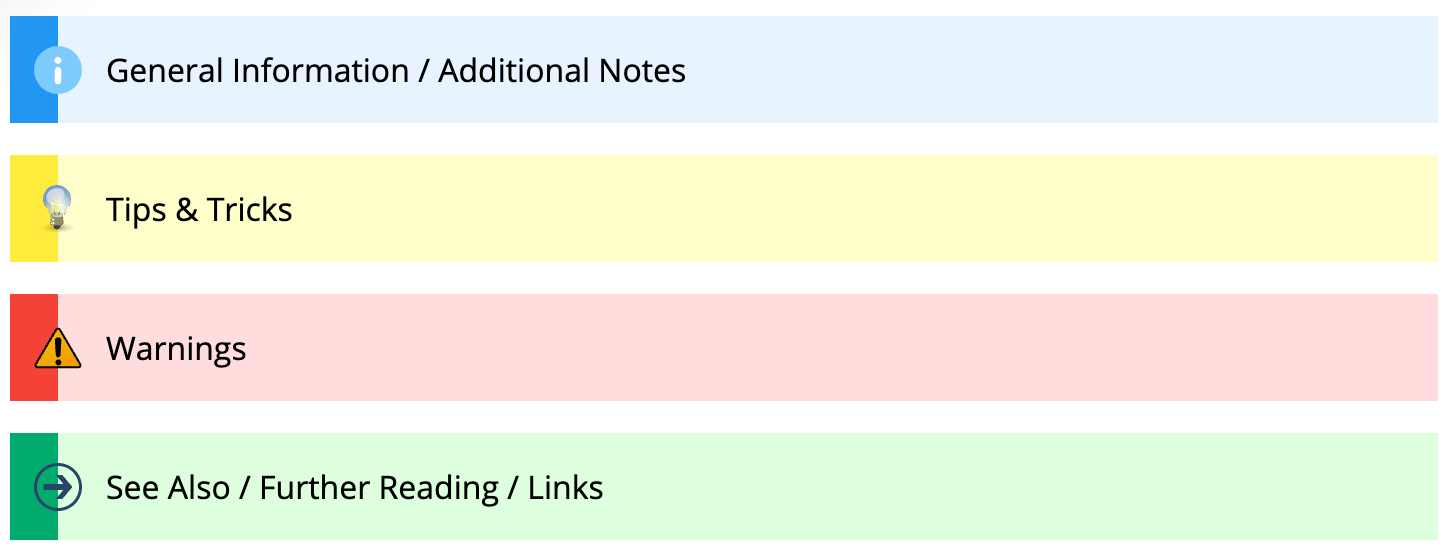
Throughout the documentation you’ll see coloured boxes with either additional information, helpful tips, warnings, or links to more resources.
Here’s how these looked in the documentation before v4.41:
…and here how these look now:
It doesn’t end there!
Whilst these might be the main UI/UX improvements we’ve made for v4.41, we’ve also made numerous other small improvements to the user interface and user experience in our latest update – too many to list here!
So whilst we’ll continue to add exciting new features and functionality with every new release, we’ll also be working to continually improve your user experience too!